What’s the difference between sleep and hibernate? Put simply, sleep keeps your work in memory and uses a little power to maintain it, so it resumes fastest. Hibernate saves your work to the SSD and then powers off, using almost no power, but it takes a bit longer to resume.
As for shutting down, when Windows has “Fast Startup” turned on (the default), it isn’t actually fully off either. Using a Windows PC as the example, here is a clear explanation of which one to press.
First, Know the Difference Between Memory and Storage
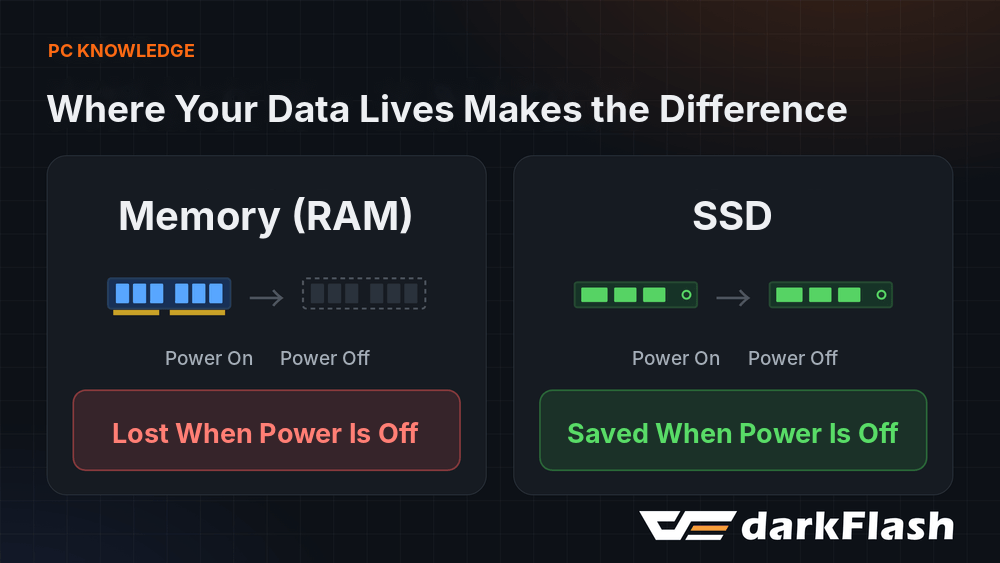
To understand these three modes, you first need to know where your data is kept. Memory is where the computer temporarily holds data while it works. The web pages you have open and the document you’re halfway through writing are all here, and the content disappears as soon as power is cut.
Storage devices such as SSDs are different: your data stays safely saved even when the power is off. The biggest difference between sleep, hibernate, and shut down is where “what you’re working on” is kept, and what keeps it alive.
Sleep Is for Short Breaks
During sleep, memory stays powered, so the programs and documents you have open remain in it exactly as they were. Microsoft explains that sleep uses very little power and returns you to your previous screen immediately on wake-up, and recommends it for short breaks, such as getting up to pour a cup of coffee.
On many laptops, closing the lid or pressing the power button puts the computer to sleep by default. When a laptop’s battery is critically low, Windows will also automatically save your work state and shut down the computer, but it is still safer to save important documents yourself first.
More and more new computers use “Modern Standby.” While it is asleep, the system is actually still in an operating state, and like a phone it can wake up occasionally to handle permitted background tasks such as Windows Update, and it resumes more instantly.
To find out which type your computer uses, type powercfg /a in Command Prompt. If “S0 Low Power Idle” appears in the list, your computer supports Modern Standby.
Hibernate Is for Long Periods of Non-Use
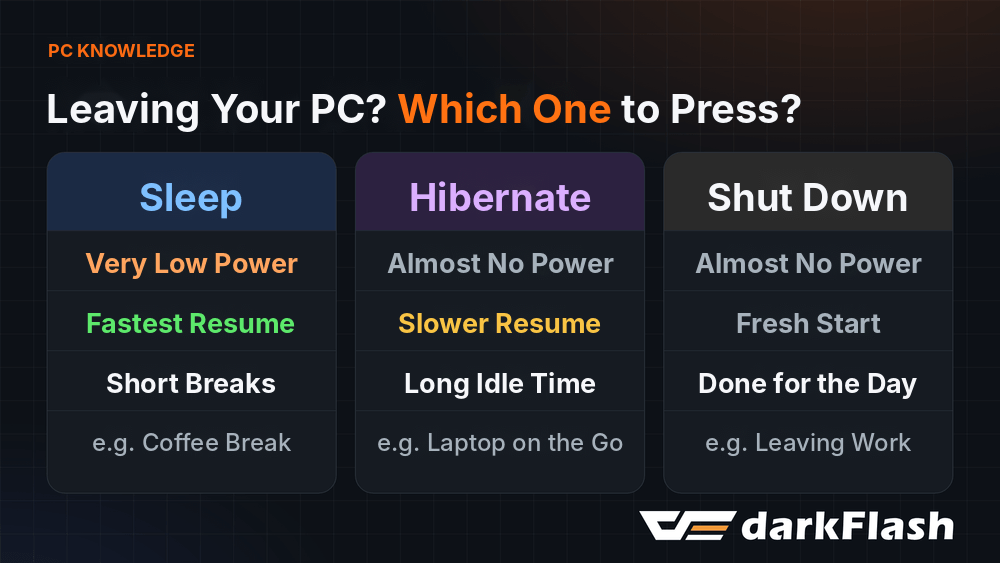
Hibernate writes everything in memory to the storage device as a file called hiberfil.sys, and then stops powering even the memory.
Dell explains that a hibernating computer uses about the same amount of power as a shut-down one. The next time you turn it on, the system reads the hibernation file back and returns you to the same screen you left, just more slowly than sleep.
Microsoft recommends choosing hibernate if you know you won’t be using your laptop for a while and won’t have a chance to charge it. However, this option is mainly designed for laptops, and not every computer shows it.
Shut Down Isn’t Actually Fully Off
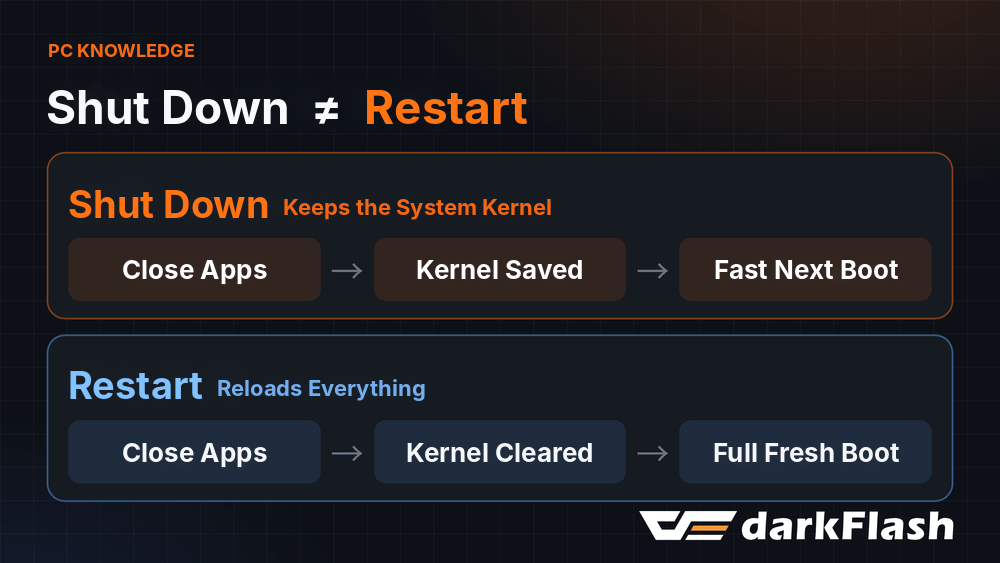
After you press shut down, all programs close and your account is signed out. But Windows has Fast Startup turned on by default.
It doesn’t fully shut down the system kernel. Instead, it saves the state of the kernel and drivers into the same hibernation file and reads it straight back the next time you boot, which is why startup is faster. Microsoft doesn’t recommend turning this feature off, and for general use, leaving the default is fine.
Restart is different. Fast Startup doesn’t apply to restarts. Windows goes through the complete boot process and reloads the kernel and all drivers, and files you’ve already saved aren’t affected.
So when you’re installing drivers, updating Windows, or want to start over because the computer is acting strangely, you should choose restart rather than shutting down and turning it back on.
Smart Build Tips
To sum up: press sleep when you’re stepping away for coffee, press hibernate when you’ll be putting your laptop in your bag and not using it for several days, shut down when the day’s work is done, and choose restart after installing drivers or updates.
Desktop gamers have one more thing worth noting. During traditional sleep, the motherboard relies on the power supply’s 5VSB standby power to keep the memory alive. Intel’s motherboard manual warns that insufficient standby current may prevent sleep from working properly.
When building, choose a power supply with solid specifications so that sleep and wake-up are stable. The darkFlash UMT Series power supply supports ATX 3.1 and PCIe 5.1, has passed 80 Plus Platinum certification. Its fully modular embossed cables also make cable routing easier.
If the screen or peripherals don’t respond after waking up, Microsoft recommends first reconnecting the devices or restarting, and making sure the drivers are up to date.
FAQ
Which uses less power, sleep or hibernate?
Hibernate uses less power. Hibernate saves your work to the storage device and then stops the power supply, using about the same power as shutting down. Sleep has to keep supplying power to the memory, and in exchange you get a faster wake-up.
Why doesn’t my computer have a hibernate option?
Hibernate is mainly designed for laptops, and not every computer has it. You can go to Power Options in Control Panel, open “Choose what the power buttons do,” and see whether you can check Hibernate in the shutdown settings.
Should I turn off Fast Startup?
Microsoft doesn’t recommend turning off Fast Startup, because it makes startup faster. When you need the system to reload completely, just choose restart.
My computer is acting strange. Should I shut down and turn it on again, or restart?
Choose restart. With Fast Startup on, shutting down preserves the system kernel state, whereas restart goes through the full boot process.