Should your AIO pump run at 100% speed all the time? For most users, a constant fixed speed between 70% and 100% is the right approach — but the exact number depends on your pump type, build goals, and how much noise you’re willing to tolerate. The short answer: lock your pump to a steady, flat speed and leave it there. Don’t let your motherboard treat it like a case fan.
Unlike radiator fans, which are designed to ramp up and down as CPU temperature changes, an AIO pump relies on a small impeller and ceramic bearing lubricated by the coolant itself. Keeping it at a stable, consistent RPM minimizes mechanical wear from constant speed changes, reduces the chance of air bubbles settling around the cold plate, and ensures coolant is always moving when your CPU boosts hard under gaming or rendering loads.
If your pump produces an audible hum at 100%, dropping it to a fixed 75–85% gives you virtually identical cooling — typically within 1–2°C — while eliminating the resonant whine without any meaningful cost to lifespan or performance.
Why Constant Speed Beats a Dynamic Curve for AIO Pumps
When building a gaming PC, it’s natural to treat every motherboard header the same way: quiet at idle, faster under load. A dynamic temperature curve works well for case fans. Applied to an AIO pump, it often causes more problems than it solves.
The reason comes down to how a liquid cooler pump is engineered differently from a case fan:
Torque and startup wear
The pump impeller pushes dense liquid coolant through narrow copper micro-channels and rubber tubing. Constantly changing RPM — especially on modern AMD Ryzen and Intel Core processors that spike from a single browser tab opening — forces the pump motor to repeatedly accelerate against fluid resistance. That continuous torque cycling stresses the motor and ceramic shaft far more than spinning at a steady pace.
Bearing stability and liquid lubrication
Most modern AIO pumps use ceramic bearings that depend on a hydrodynamic film of coolant to stay centered and friction-free. Running a pump too slowly — below roughly 40–50% duty cycle — risks losing that hydrodynamic stability, which leads to micro-vibrations, uneven bearing wear, and sometimes an audible rattle.
Thermal inertia vs. instant CPU boosts
Liquid has high thermal capacity and responds slowly compared to air. If your pump is idling at 40% when your CPU jumps from 40°C to 85°C during shader compilation, the slow-moving coolant sitting over the cold plate heats up before the pump can spin up and flush it toward the radiator. A constant 80–100% flow rate keeps cool liquid sweeping across the cold plate at all times, ready to absorb heat the moment a boost occurs.
【Suggested Image: Simplified diagram of the AIO coolant loop — cold plate → pump → radiator → cold plate — with directional arrows showing coolant flow and labels for heat absorption at the CPU block and heat dissipation at the radiator】
100% Fixed vs. 80% Fixed vs. Dynamic Curve: Real-World Impact
How much does pump speed actually change your temperatures? In thermal testing across 240mm and 360mm AIO coolers, pump flow rate hits a point of diminishing returns much faster than radiator fan speed does. Digital Trends testing found that the gap between 80% and 100% pump speed under sustained CPU load is typically 1–2°C at most — a difference that disappears entirely in real gaming scenarios.
Dropping from 100% to a fixed 80% barely registers on a CPU thermometer during gaming, yet it can eliminate the low-frequency resonant hum that sometimes transmits through a motherboard tray. Dropping below 50%, on the other hand, introduces noticeable thermal penalties and increases the risk of air pockets getting trapped inside the pump housing.
How Pump Speed Prevents Air Bubbles and Gurgling Noises
One of the most commonly reported AIO issues — a gurgling, trickling, or faint clicking sound from the CPU block — is almost always caused by one of two things: an incorrectly oriented radiator, or a pump running on a low-speed variable curve.
Every sealed AIO cooler contains a small air gap (roughly 2–5% of loop volume) to allow for thermal expansion as coolant warms up. When the pump runs at a steady 80–100%, the fluid velocity pushes stray air pockets out of the pump housing and keeps them trapped at the highest point of the radiator, where they cause no harm.
When a motherboard throttles the pump down to 35% at idle, water pressure drops. Micro-bubbles can then linger around the spinning impeller blades and cause cavitation — a condition where tiny air pockets collapse rapidly, producing the clicking or grinding sound many builders notice. A bubble trapped against the cold plate also acts as a thermal insulator, reducing heat transfer and causing sudden CPU temperature spikes.
This is also why, when installing a new AIO for the first time, running the pump at 100% for the first 24–48 hours is the recommended practice. The sustained high flow rate helps bleed trapped installation air out of the pump block and into the radiator reservoir, where it can safely remain.
【Suggested Image: Visual comparison of two AIO cold plate cross-sections — left side showing bubbles trapped around the impeller at low pump speed, right side showing clear coolant flow at 80%+ speed — clean technical illustration on dark background】
3-Pin DC vs. 4-Pin PWM Pump Cables: Why Motherboard Settings Matter
Before adjusting anything in your BIOS, confirm which connector your AIO pump uses — the wiring type determines how your motherboard should be configured.
3-pin pump connectors (DC voltage control)
Many mainstream AIO pumps use a 3-pin connector powered by a direct 12V DC line. If you plug a 3-pin pump into a header set to “Auto” or a DC curve, the motherboard reduces pump speed by lowering voltage — dropping from 12V down to 7V or even 5V.
Running a 12V DC pump at that low a voltage can cause the motor to stall entirely on boot, triggering a CPU Fan Error and allowing the CPU to overheat within seconds. 3-pin pumps should always be set to 100% full speed (12V) in the BIOS — there is no safe way to reduce their speed without hardware modification.
4-pin pump connectors (PWM control)
Pumps with a 4-pin connector receive a constant 12V supply at all times and use the fourth signal wire to safely regulate RPM. With a 4-pin PWM pump, you can confidently lock speed anywhere from 75–100% without risking a stall at low duty cycles.
SATA-powered pumps
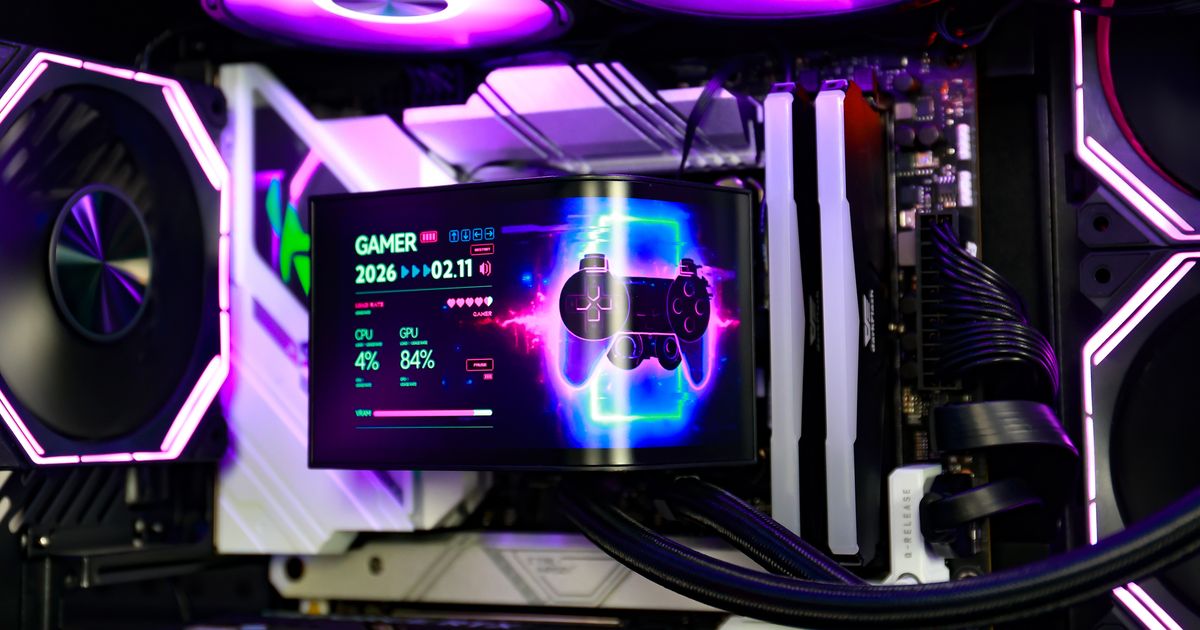
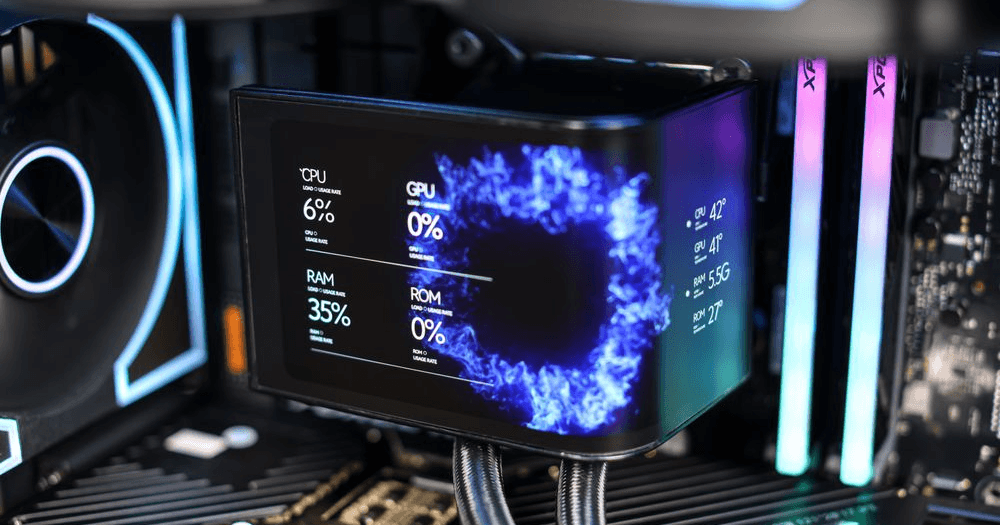
Some premium AIO coolers — particularly those with built-in LCD or IPS displays — draw pump power directly from the PSU via a SATA cable and use the motherboard header only to report RPM telemetry. These pumps self-regulate or run at full speed by design and require no BIOS configuration for the pump itself.
Step-by-Step: How to Set Your AIO Pump Speed in BIOS
Configuring your pump correctly takes under two minutes and makes a measurable difference in acoustics, longevity, and consistency.
Step 1 — Connect to the right headers
Plug your pump power/tachometer cable into the motherboard’s dedicated AIO_PUMP, W_PUMP+, or CPU_OPT header. Plug your radiator fans into the CPU_FAN header. Most motherboards automatically lock the AIO_PUMP header to 100% while applying a temperature curve to CPU_FAN — which is exactly the intended behavior.
Step 2 — Enter the BIOS fan control menu
Restart and press Del or F2 to enter the UEFI BIOS. Navigate to the fan control section — labeled Q-Fan Control on ASUS, Smart Fan 6 on Gigabyte, or Hardware Monitor on MSI and ASRock boards.
Step 3 — Set the correct operating mode
Find the header your pump is connected to. For a 4-pin pump, select PWM Mode. For a 3-pin pump, select DC Mode and immediately set it to Full Speed (100%).
Step 4 — Lock a flat duty cycle
For 4-pin PWM pumps, switch from the default temperature curve to Manual and drag every point on the curve graph to a flat horizontal line at 100%. If the hum is noticeable in your environment, bring all points down to a flat 80–85% instead. The key is that every point sits at the same level — no ramps, no dips.
Step 5 — Tune your radiator fans separately
Select the CPU_FAN header and apply a gentle PWM curve with a 2–3 second ramp-up delay. Let your radiator fans — not the pump — respond to CPU temperature changes. This is the correct division of labor: stable pump, dynamic fans.
【Suggested Image: Screenshot-style mockup of a BIOS fan control screen showing a flat horizontal pump speed curve locked at 80%, contrasted with a rising temperature-responsive curve on a separate radiator fan header — clean UI illustration on dark background】
Frequently Asked Questions
Will running my AIO pump at 100% wear it out faster?
For quality AIOs, no. Asetek — whose pump technology powers coolers from ASUS, Corsair, NZXT, and others — states their pumps are designed for 100,000 hours of continuous use in demanding datacenter environments, and that radiator fans typically fail long before the pump does. However, budget AIOs with lower-grade bearings have a different story. Sustained 100% operation on a low-quality pump does accelerate wear. For everyday use, a fixed 80% is a sensible middle ground regardless of pump quality.
What happens if I plug my AIO pump into CPU_FAN instead of AIO_PUMP?
It will work, but only if you manually correct the header setting. CPU_FAN defaults to a variable fan curve intended for air coolers — leaving it on auto will cause your pump to constantly cycle speed. Set that header to a fixed 80–100% in the BIOS and connect your radiator fans to a SYS_FAN or CHA_FAN header instead.
Why is my AIO making a high-pitched buzzing at 100%?
Every electric motor has a resonant frequency range. At 3,000+ RPM, a pump can transmit harmonic vibrations through the cold plate into the motherboard socket. Lowering a 4-pin PWM pump from 100% to a fixed 80–85% typically shifts the motor out of that resonant band — often making it completely inaudible — with less than a 1–2°C difference in CPU temperatures.
Should my radiator fans also run at 100% all the time?
No. Radiator fans push air through dense aluminum fins and become significantly loud above 1,500–1,800 RPM. Keep radiator fans on a dynamic PWM curve — around 30–40% at idle, stepping up to 65–80% during gaming — while the pump maintains steady coolant circulation. This is the standard recommended setup.
Conclusion: Set It Once for Cooler, Quieter Gaming
The principle behind correct AIO pump configuration is simple: keep coolant flow consistent, and let your radiator fans handle the thermal response curves. Locking your pump to a flat 80–100% duty cycle avoids startup torque wear, keeps air bubbles cleared from the cold plate, and ensures your CPU always has moving coolant available the moment it boosts.
The right pump setting takes two minutes to configure in BIOS and, once done, requires no further adjustment. From there, focus your tuning effort on your radiator fan curves — that’s where the real balance between acoustics and thermal performance is found.
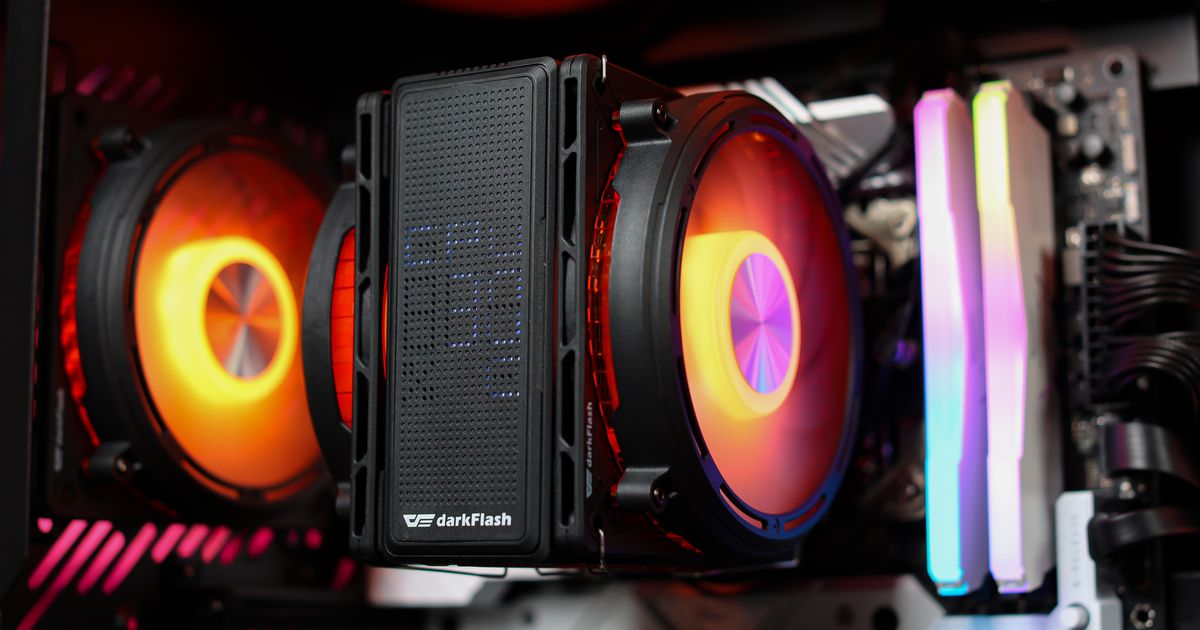
For a well-matched combination of a durable ceramic-bearing pump, high-density copper micro-channel cold plate, and independently PWM-controlled radiator fans, the darkFlash EXPLORE DE360 and the broader darkFlash Liquid CPU Cooler lineup are worth a look — designed to run quietly and reliably whether you prefer a fixed 80% or full-speed pump configuration.