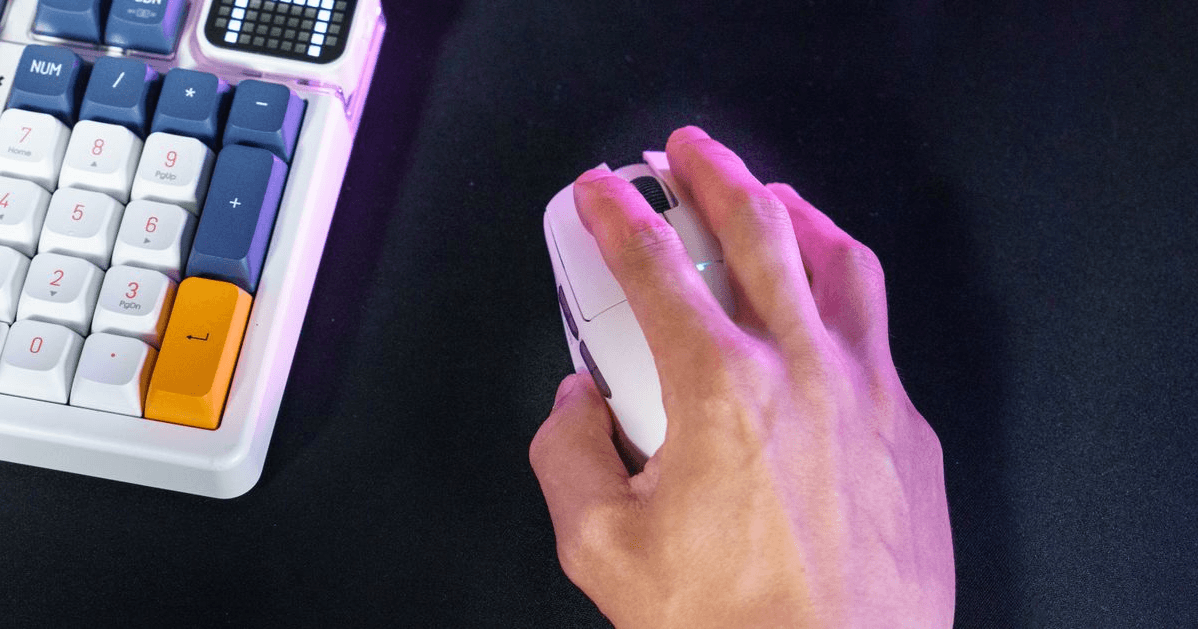
Which USB port should you use for your mouse and keyboard? For the most stable connection, plug your gaming mouse and keyboard directly into the rear motherboard USB ports, especially if they are wired or high-polling-rate devices.
Rear USB ports are connected directly to the motherboard, which usually makes them more reliable than front-panel ports, USB hubs, or monitor USB passthrough. For most standard keyboards and mice, any working USB-A port is fine, but competitive gamers should prioritize stability, low latency, and clean signal routing.
Rear USB vs Front USB: Which Is Better for Gaming?
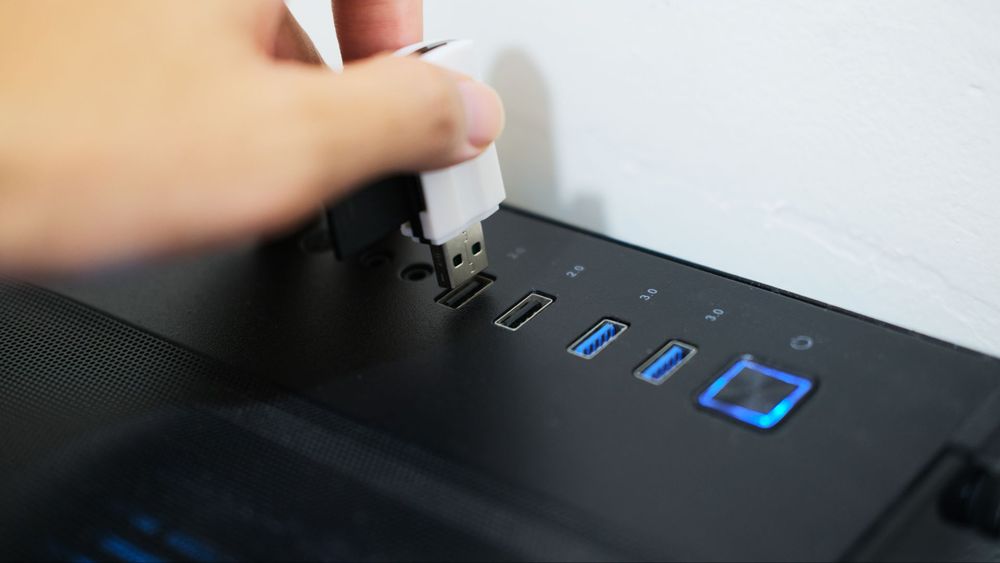
Rear USB ports are generally better for gaming mice and keyboards because they connect directly to the motherboard’s I/O. Front USB ports are convenient, but they rely on internal case cables connected to motherboard headers, and poor cable routing, loose headers, or overloaded front I/O can sometimes cause disconnects.
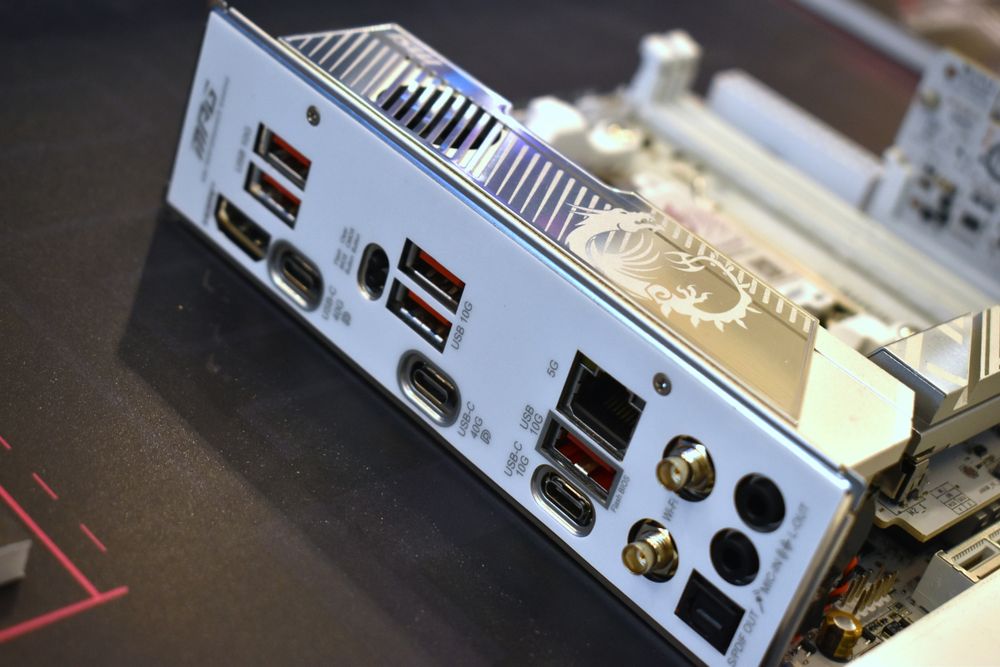
That does not mean front USB is bad. A well-designed PC case with quality front I/O is perfectly fine for USB flash drives, controllers, headsets, and temporary devices. But for your main mouse and keyboard, rear motherboard USB is the safer default.
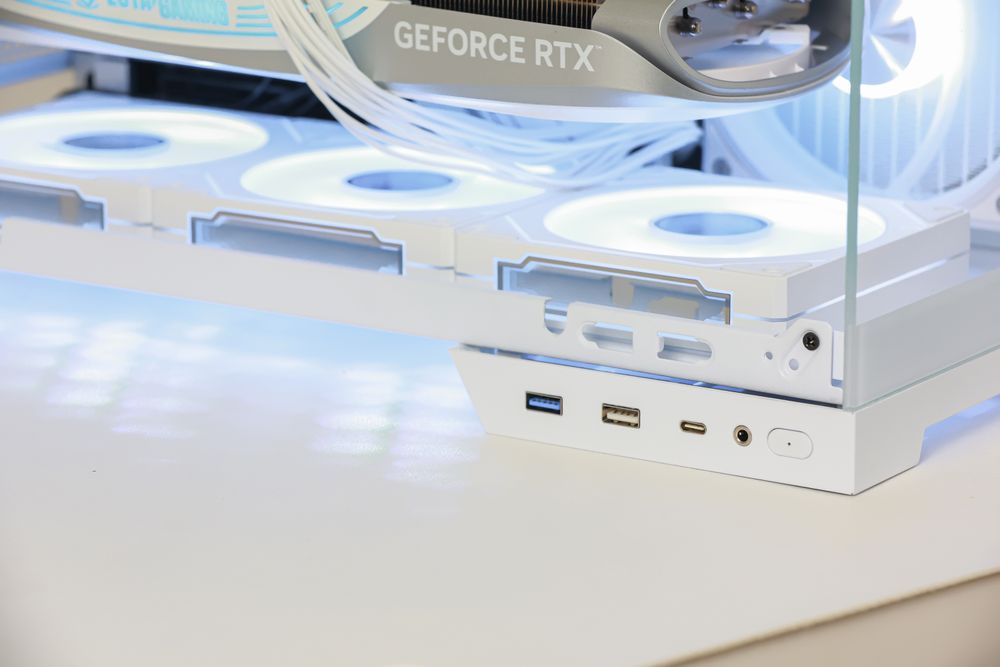
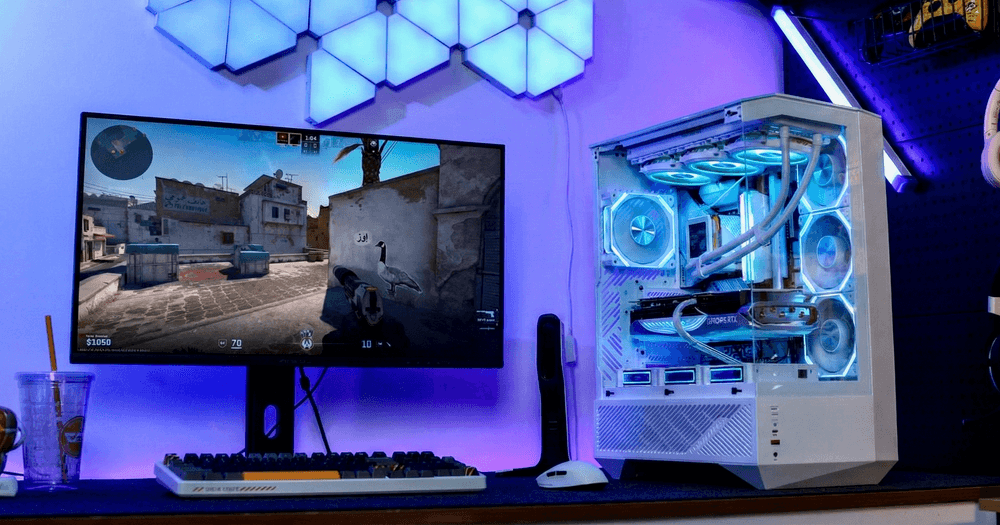
(darkFlash TH285 PLUS ATX PC Case)
USB 2.0 or USB 3.0: Does It Matter for Mouse and Keyboard?
Do gaming mice and keyboards need USB 3.0? Usually no. Most mice and keyboards do not need the bandwidth of USB 3.x, even when they have RGB lighting or onboard memory. A USB 2.0 port is often enough for standard input devices.
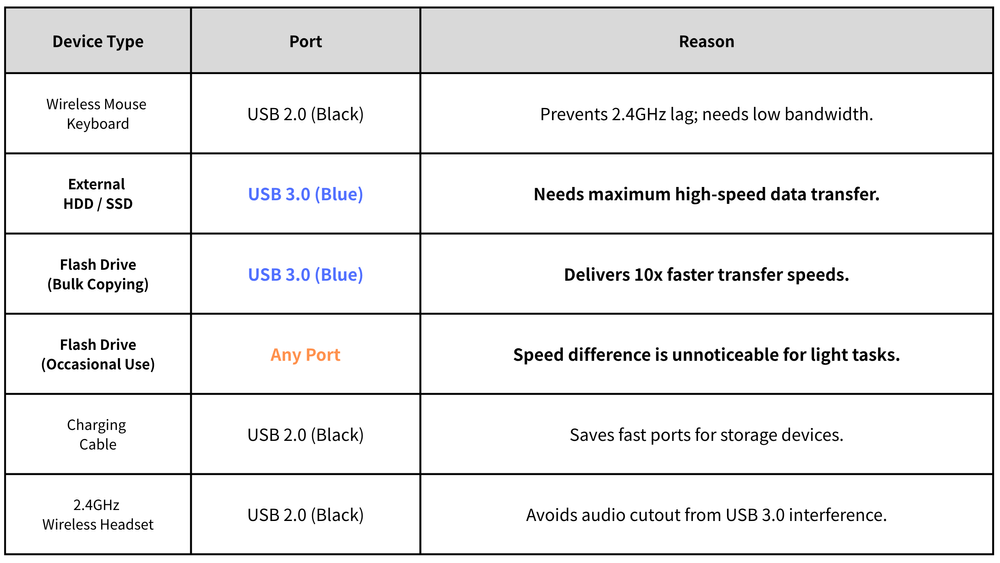
However, if you use an 8000Hz polling rate mouse or keyboard, a direct motherboard USB port is still recommended because stable polling matters more than raw bandwidth. Avoid plugging high-performance input devices into crowded USB hubs, low-quality extension cables, or monitor ports if you experience lag, missed inputs, or random disconnects.
Should You Use a USB Hub for Gaming Accessories?
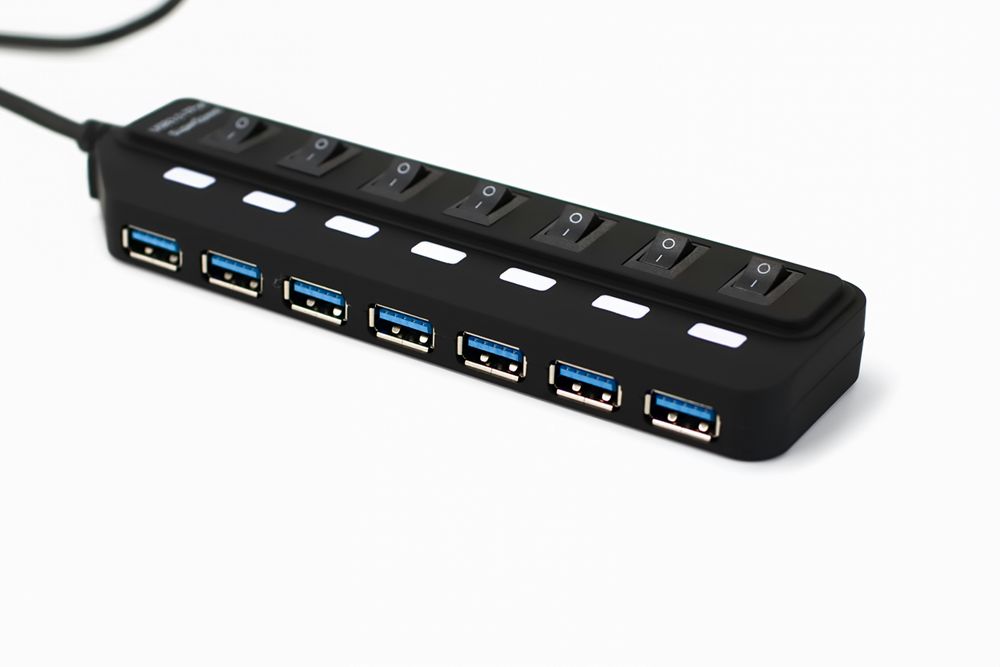
A USB hub is useful for accessories, but it should not be your first choice for your main gaming mouse and keyboard. Hubs share bandwidth and power across multiple devices, which can create problems if you connect RGB keyboards, wireless dongles, external drives, webcams, microphones, and headsets all at once.
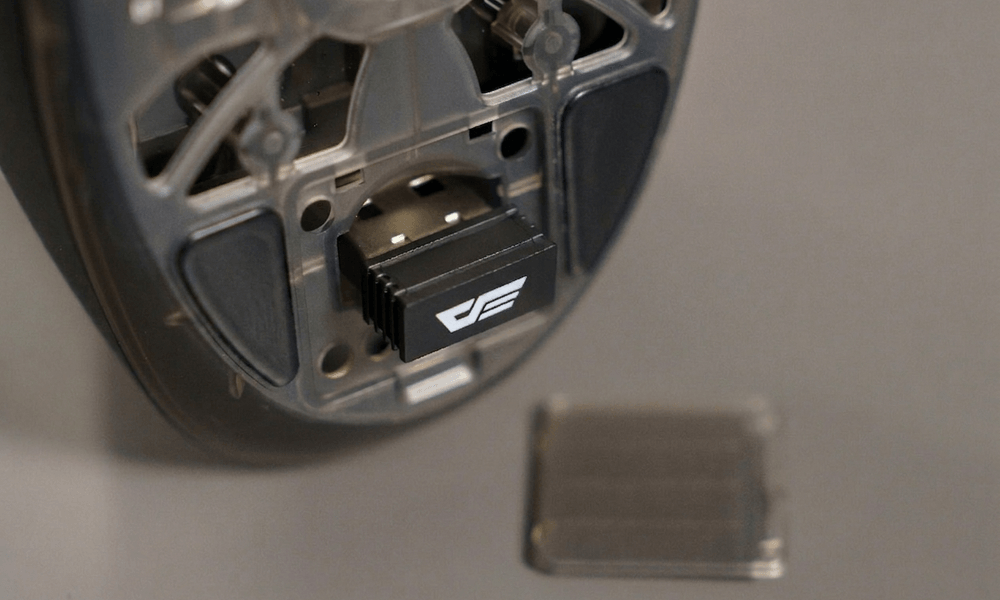
If you need a hub, use it for lower-priority accessories and keep your mouse and keyboard connected directly to the PC. Also, place wireless mouse and keyboard dongles away from USB 3.x storage devices or crowded rear I/O areas, because interference and distance can affect wireless stability.
Final Thoughts: Keep Your Main Inputs Direct and Stable
For the best gaming experience, connect your mouse and keyboard directly to the rear motherboard USB ports. Use front-panel USB ports for convenience, and use hubs for accessories that do not need the lowest latency.
If you are building or upgrading a PC, the case still matters: a well-designed chassis with reliable front I/O gives you flexible access for controllers, USB drives, and peripherals, while the motherboard rear I/O remains the best home for your main input devices.
darkFlash gaming cases, keyboards, and mice are built around practical daily use, giving gamers cleaner setups and more reliable connections.