Should you cap your FPS in games? In many situations, yes: a sensible frame-rate limit can improve frame consistency, reduce GPU power consumption and fan noise, and keep a variable-refresh monitor within its supported range, although competitive players may benefit from a much higher limit.
The Frame Rate Limit, Max FPS, or FPS Cap option places an upper boundary on how many frames a game attempts to produce each second. It does not increase performance, but it can stop the CPU and GPU from spending resources on frame rates that provide limited benefit for a particular display or game.
The best setting depends on the monitor, game genre, available performance, cooling system, and whether technologies such as G-Sync, FreeSync, NVIDIA Reflex, or AMD Anti-Lag are enabled.

How Does an FPS Cap Work With Your Monitor’s Refresh Rate?
A monitor’s refresh rate determines how frequently it can update its image. A 144Hz monitor completes up to 144 refresh cycles per second, but a gaming PC may render considerably more than 144 frames during that time.
Frames above the refresh rate are not simply discarded without any benefit. With V-Sync disabled, the monitor can receive a newer frame while it is still scanning the previous one. This means one refresh may display parts of multiple frames, which can reduce the age of the information reaching the screen but also cause visible screen tearing.
Higher frame rates can therefore improve responsiveness even when they exceed the monitor’s refresh rate. NVIDIA’s latency research explains that higher FPS generally correlates with lower system latency, although frame rate and latency are not the same measurement. This is why competitive players may run at several hundred FPS on a lower-refresh display.
An uncapped game will attempt to produce frames as quickly as its current bottleneck allows. The limiting component might be the GPU, CPU, memory, game engine, or an internal frame-rate restriction. Uncapped output does not automatically mean that both the CPU and GPU will operate at 100% utilization.
When a cap is enabled, the game or graphics driver delays additional frame production after reaching the target. The hardware does not render frames in batches and then “rest”; frame scheduling is controlled continuously to remain near the selected limit.
What Are the Real Benefits of Limiting FPS?
A well-chosen frame-rate cap can make performance feel more consistent when it is set below the level the PC can reliably sustain. If a game normally fluctuates between 85 and 130 FPS, an 80 FPS target may provide steadier frame delivery than repeatedly moving between much higher and lower values.
This relates to frame pacing, or the time interval between individual frames. Average FPS alone cannot show whether frames arrive evenly. However, a limiter does not guarantee perfect frame pacing or automatically improve 1% lows. Shader compilation, asset streaming, CPU spikes, storage access, and engine problems can still produce stutter.
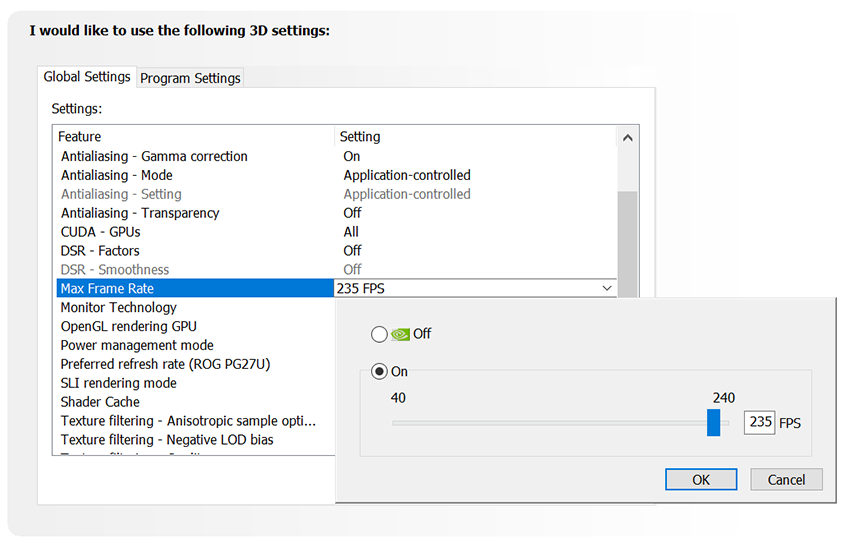
The most predictable advantage is lower workload. When a game can render far above the chosen limit, reducing frame production may lower GPU utilization, power consumption, temperature, and fan speed. NVIDIA presents its Max Frame Rate control as a way to save power and stay inside a G-Sync display’s variable-refresh range. AMD’s Radeon Chill similarly regulates frame rate to reduce power consumption and GPU temperature. NVIDIA documents Max Frame Rate here, while AMD explains Radeon Chill here.
The actual thermal improvement varies significantly. A lightly loaded esports game may show a large reduction in power and noise, while a graphically demanding game capped only slightly below its normal performance may show very little difference. Claims that an FPS cap always lowers GPU temperature by 10°C to 15°C are therefore not reliable without a specific test configuration.
Frame limiting can also leave resources available for streaming and recording. OBS requires GPU time to composite and render its scenes, even when hardware encoding is enabled. The official OBS troubleshooting guide recommends limiting game FPS when GPU saturation causes rendering or encoding problems.
Can an FPS Cap Eliminate Screen Tearing Without Adding Input Lag?
An FPS cap alone does not guarantee tear-free output. Screen tearing depends on frame presentation, V-Sync, variable refresh rate, and whether the game remains inside the monitor’s supported refresh range.
On a G-Sync, FreeSync, or Adaptive-Sync monitor, setting the frame-rate limit slightly below the maximum refresh rate can prevent the game from repeatedly crossing the top of the VRR range. The monitor can then adjust its refresh timing to match the arriving frames.
NVIDIA recommends setting Max Frame Rate slightly below the display’s maximum refresh rate when the goal is to remain within the G-Sync range. AMD also recommends V-Sync or a frame-rate cap when game performance regularly exceeds the maximum refresh rate of a FreeSync display. AMD’s FreeSync guidance is available here.
The appropriate setup depends on the display:
G-Sync, FreeSync, or Adaptive-Sync: Enable VRR and set the cap slightly below the maximum refresh rate.
Fixed-refresh monitor: A cap can reduce workload but may not eliminate tearing. V-Sync prevents tearing by synchronizing presentation, although its latency behavior varies with the game and presentation mode.
Competitive game: Use a high frame-rate target and enable an integrated latency feature such as NVIDIA Reflex or AMD Anti-Lag when supported.
The common advice to cap exactly one or two frames below the refresh rate is not a universal formula. Frame limiters vary in accuracy, and brief performance overshoots can still occur. A slightly larger margin may be required on some systems.
Input latency also requires more nuance than “uncapped is always faster.” Higher FPS usually reduces the time between frames, but a fully saturated GPU can build a render queue that adds latency. In GPU-bound games, a controlled frame rate combined with Reflex or another low-latency mode may be more responsive than leaving the GPU permanently at maximum utilization.
When Should You Cap FPS or Leave It Uncapped?
A frame-rate cap is most useful when the PC can produce more performance than the game, display, or secondary applications require.
Consider enabling an FPS cap when:
Playing single-player or cooperative games where consistency matters more than minimum latency
Using a G-Sync, FreeSync, or Adaptive-Sync monitor
Trying to reduce GPU power consumption, temperature, or fan noise
Streaming or recording while GPU utilization is high
Gaming on a laptop where battery life and surface temperature matter
Experiencing large fluctuations above a sustainable frame-rate target
Consider using a high cap or uncapped output when:
Playing a latency-sensitive competitive game
Running a benchmark intended to measure maximum performance
Stress-testing cooling or checking overclock stability
Troubleshooting a game that behaves incorrectly with its limiter enabled
For competitive games, completely uncapped output is an option rather than an absolute requirement. A high cap that the system can sustain may deliver consistent latency while preventing unnecessary load. The result depends on the game engine and supported latency technologies.
Start with the game’s built-in limiter because it can work directly with the engine’s frame scheduling. If it produces inconsistent frame times, compare it with the NVIDIA Control Panel Max Frame Rate setting, AMD Radeon Chill, or a reputable third-party limiter such as RTSS. No limiter is universally “flawless,” so evaluate the result with a frame-time graph and actual gameplay.
Final Thoughts: An FPS Cap Is an Optimization, Not an Overheating Fix
An FPS cap can make a gaming PC more efficient. It may stabilize frame delivery, reduce unnecessary rendering work, lower cooling noise, preserve GPU resources for OBS, and keep a game inside the monitor’s VRR range.
It should not be used to conceal a hardware problem. A properly functioning desktop PC should remain stable under sustained full load. If uncapped gameplay causes crashes, shutdowns, severe throttling, or unsafe temperatures, check the fans, cooler mounting, dust buildup, case airflow, thermal interface, power supply, drivers, and system stability.
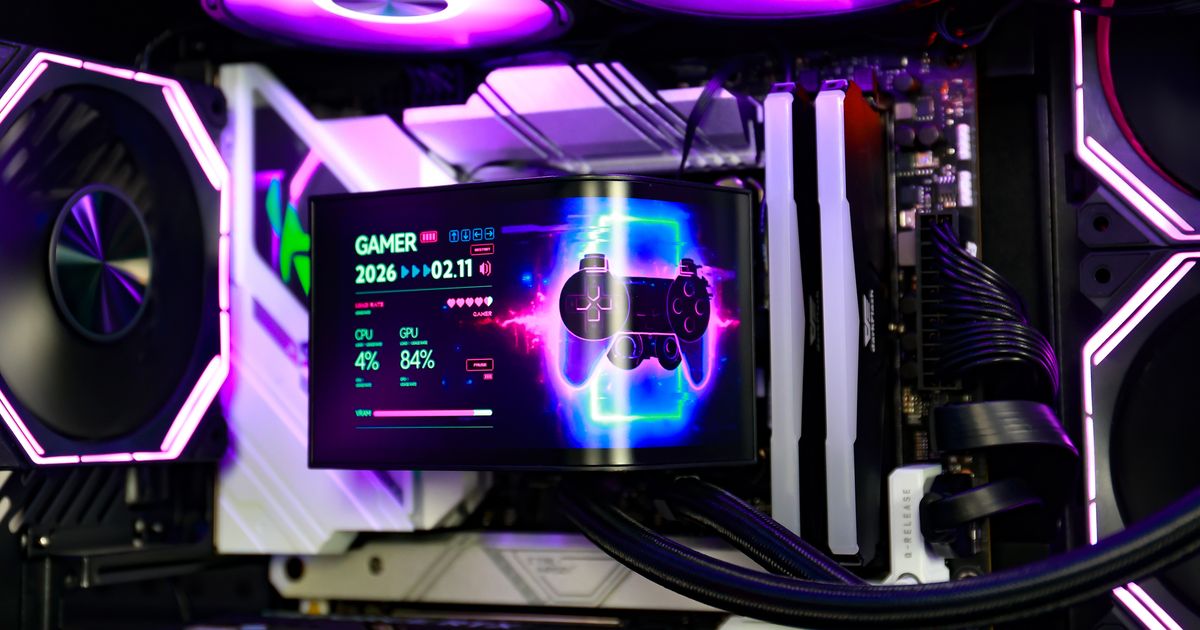
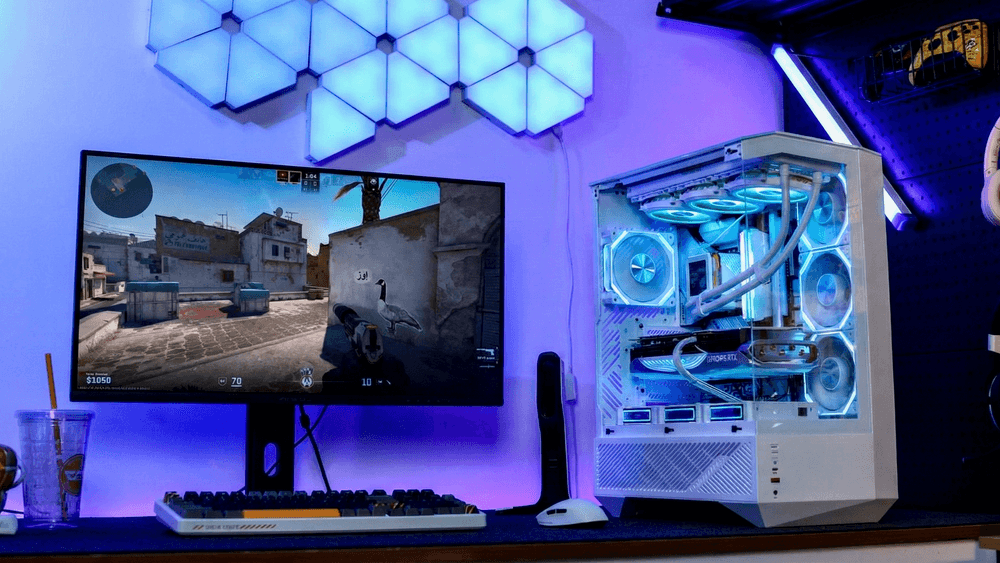
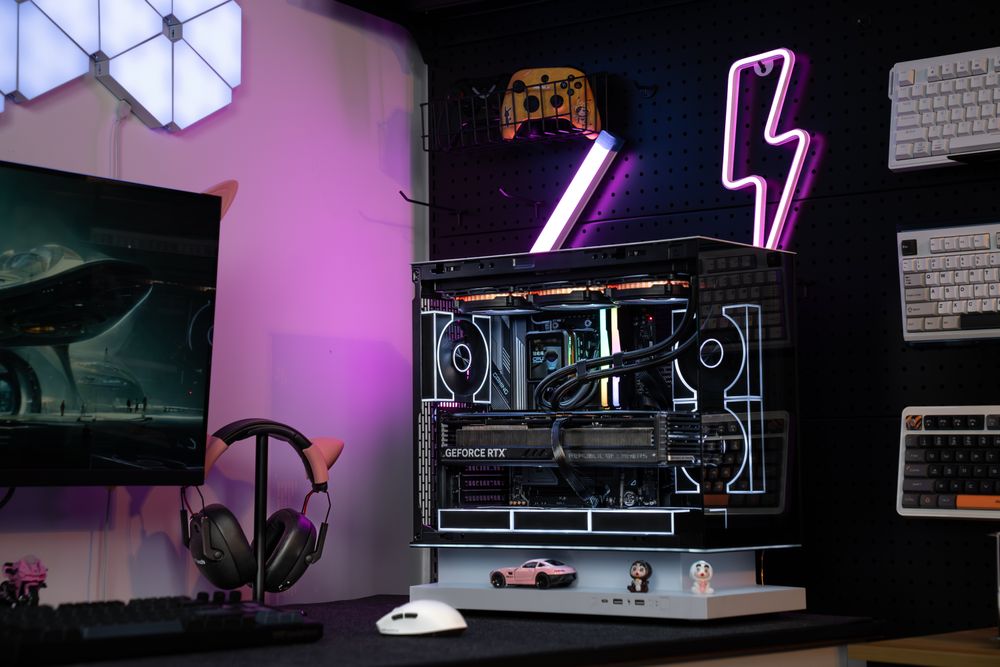
Physical cooling remains important regardless of the frame-rate setting. The darkFlash FLOATRON F1 ATX PC Case, for example, supports up to nine 120mm fans and two 360mm radiators, giving builders several ways to supply fresh air and exhaust component heat. The darkFlash CPU-cooler lineup also includes different air- and liquid-cooling options for a range of processors and case layouts.
Use a frame-rate cap when it supports the experience you want, whether that means quieter single-player gaming, stable streaming, longer laptop battery life, or smooth VRR operation. Use proper airflow and cooling to ensure the PC remains stable when maximum performance is required.