Is your gaming mouse sensor stuttering or feeling unresponsive in 2026? Inaccurate tracking or cursor jumping is rarely a sign of a hardware failure; instead, it is typically caused by physical obstructions such as dust buildup on the sensor lens or an inconsistent mouse pad surface.
To restore professional-grade precision, you should gently clean the sensor aperture with a dry cotton swab, ensure Windows "Enhance Pointer Precision" is disabled to maintain muscle memory, and verify that your mouse skates are free of debris.
Regular maintenance not only improves your accuracy in competitive titles but also significantly extends the operational lifespan of your premium peripherals.
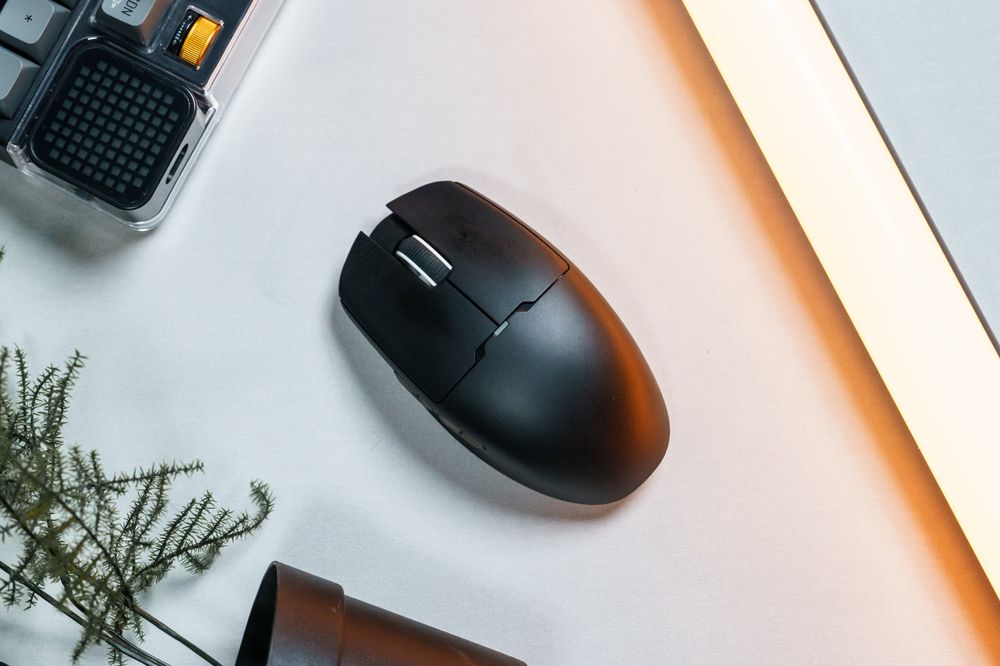
Troubleshooting Sensor Inaccuracy: Common Environmental Culprits
Before assuming your mouse is broken, check these three environmental factors that frequently degrade optical performance:
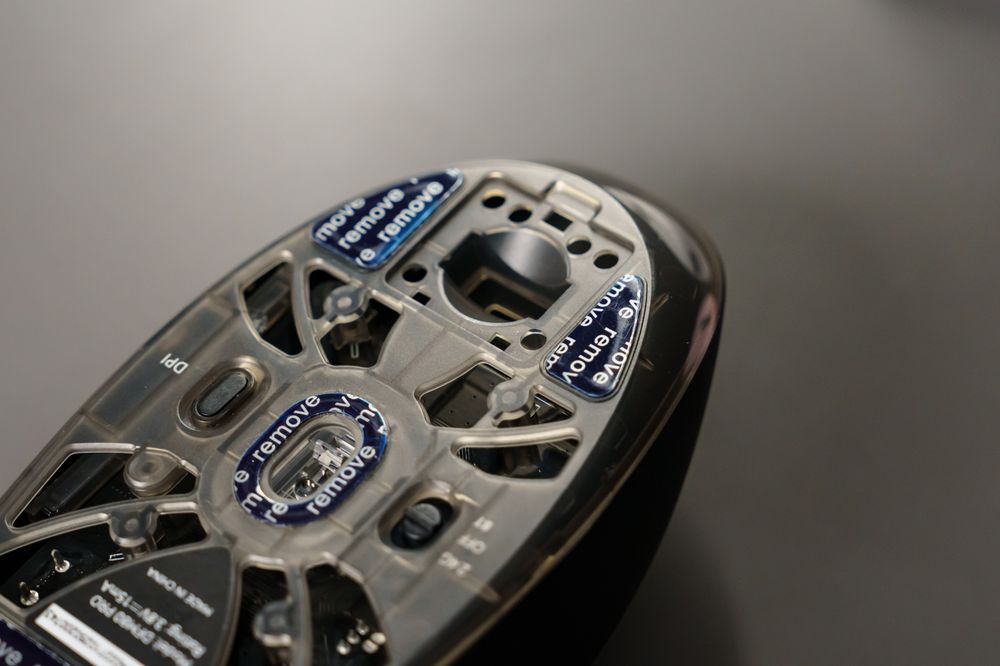
Inspect the Sensor Aperture: Microscopic dust particles or a single strand of hair can block the high-performance optical sensor from correctly reading the tracking surface.
The Dry Cleaning Method: Use a dry cotton swab to gently wipe the sensor lens in a circular motion; avoiding liquid cleaners prevents chemical fogging that can permanently blur sensor output.
Evaluate Your Tracking Surface: Flagship sensors require a consistent texture for high-speed tracking; a worn or dirty mouse pad can cause the cursor to "skip" or lose tracking during rapid flick shots.
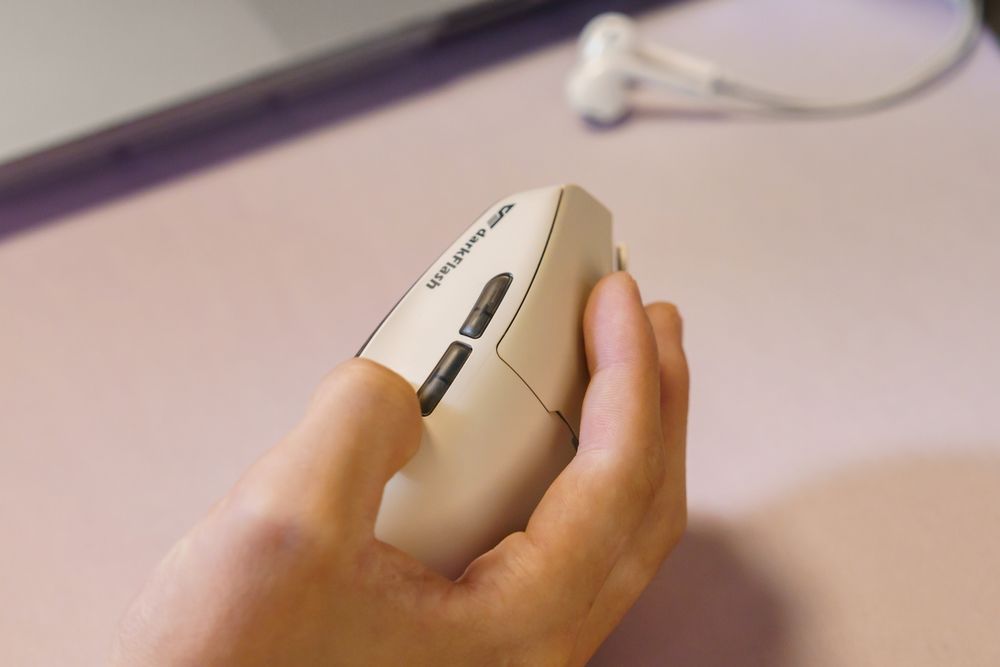
Professional Mouse Maintenance: Keeping Your Shell Pristine
Since a mouse is a high-touch peripheral, hand oils and skin cells can accumulate in crevices, affecting both hygiene and button tactility.
Surface Sanitization
Daily Wipe: Regularly clean the mouse body with a dry microfiber cloth to remove surface oils.
Deep Cleaning: For stubborn grime, use a pre-moistened wipe with less than 75% alcohol to sanitize the shell without damaging the specialized anti-slip coatings found on professional gear.
Internal Debris Removal
Dust often settles between the mouse buttons or around the scroll wheel, leading to stiff clicks.
The "Cold Air" Technique: Use a hairdryer on its strictly cold setting or a canister of compressed air to blow debris out of the button gaps and scroll wheel assembly.
Moisture Warning: Never introduce water or liquid cleaners into the internal circuitry, as this causes short circuits and immediate hardware failure.
Conclusion: Protect Your Aim with the Right Foundation
A high-end mouse sensor is only as good as the environment it operates in. By following these simple maintenance steps and choosing a darkFlash cooling and chassis foundation, you ensure that dust and heat never compromise your performance.