Why does my PC turn on for a second then shut off? The cause is usually one of two things: your power supply is cutting power instantly because it detects a short circuit, or your motherboard is failing its startup checks and restarting in a loop.
In most DIY builds and upgrades, the culprit is a loose or wrong CPU power cable, an unseated RAM stick, a stray motherboard standoff, or a RAM setting that won’t boot. On a new DDR5 build, it can also just be normal memory training that looks like a failure.
Don’t assume your motherboard or graphics card is dead. Work through the six checks below in order, and you can usually find the cause in under twenty minutes.
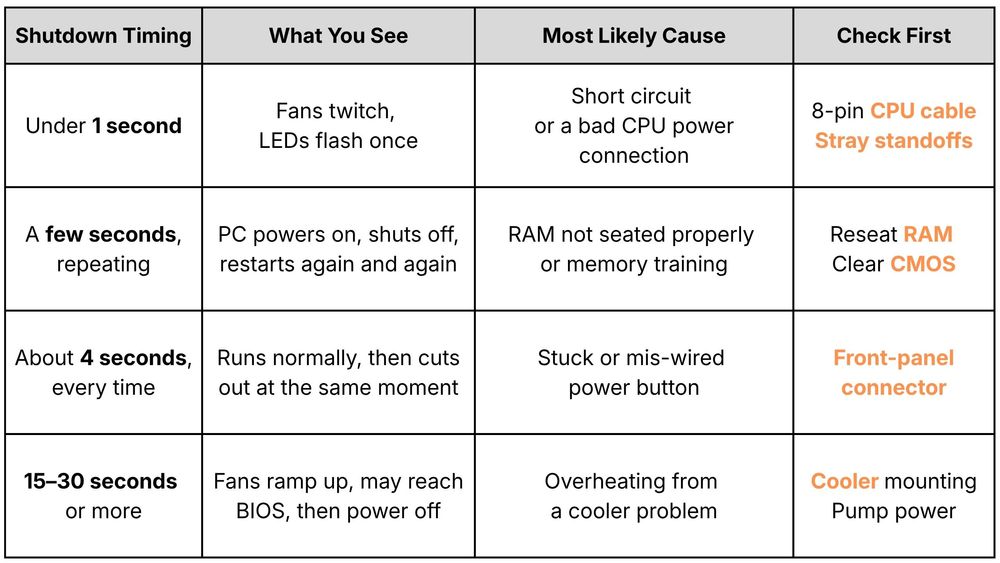
Diagnostic Table: How Long Does Your PC Stay On Before Shutting Down?
How long your PC stays on is your best clue. Match what you see to a row below to know where to start.
6 Step-by-Step Fixes When Your PC Turns On and Immediately Shuts Off
Before touching any internal component, switch the power supply to OFF (O) and unplug the power cord.
1. Check Your 8-Pin CPU Power Cable (And Ensure It Isn’t a PCIe Cable)
The most common cause on a new build is the 8-pin CPU power cable, which is often 4+4 pin and sits near the top-left of the motherboard.
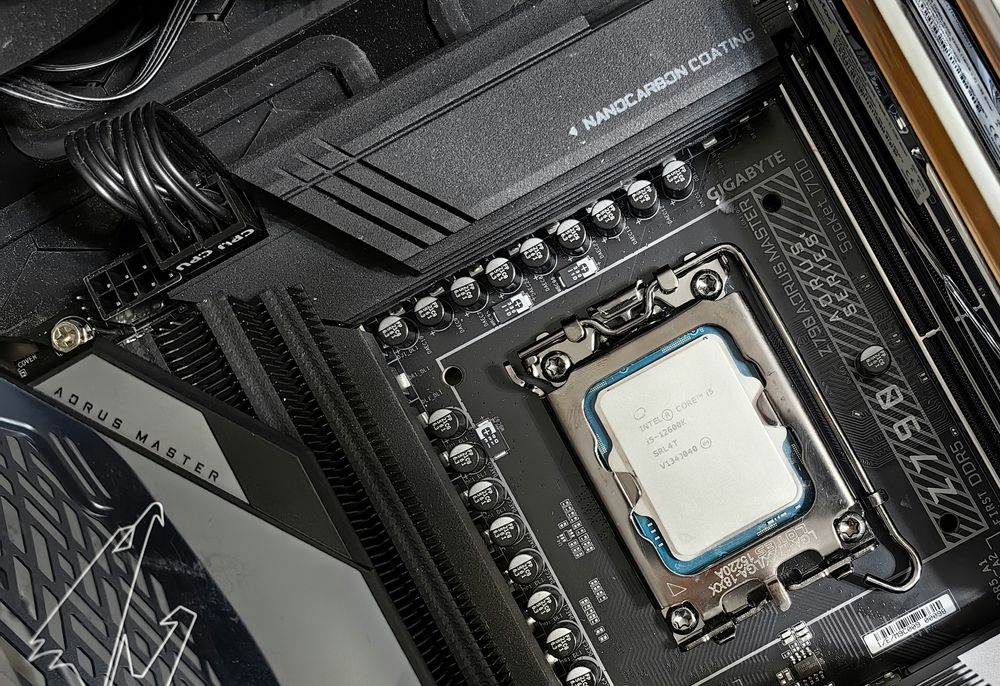
Check both connectors are fully latched.
The 24-pin motherboard connector and the 8-pin CPU connector both need firm pressure until the clips snap over. A partly seated connector can give unstable power that stops the PC from starting.Make sure the cable is actually a CPU/EPS cable.
CPU (EPS) and graphics (PCIe) 8-pin cables look similar but are wired differently. An EPS 8-pin has four +12V and four ground wires, while a PCIe 8-pin has three +12V and five ground wires. The connectors are keyed differently, so a PCIe cable generally won’t seat fully into an EPS socket, and you should never force it. Use the cable labeled CPU or EPS in your PSU’s cable set.
2. Reseat Your RAM in Slots A2 and B2 (The Single-Stick Test)
If your PC stays on for a few seconds, shuts down, and tries again in a loop, the motherboard may be failing to initialize memory. DDR5 sticks can feel seated while one end is still raised slightly.
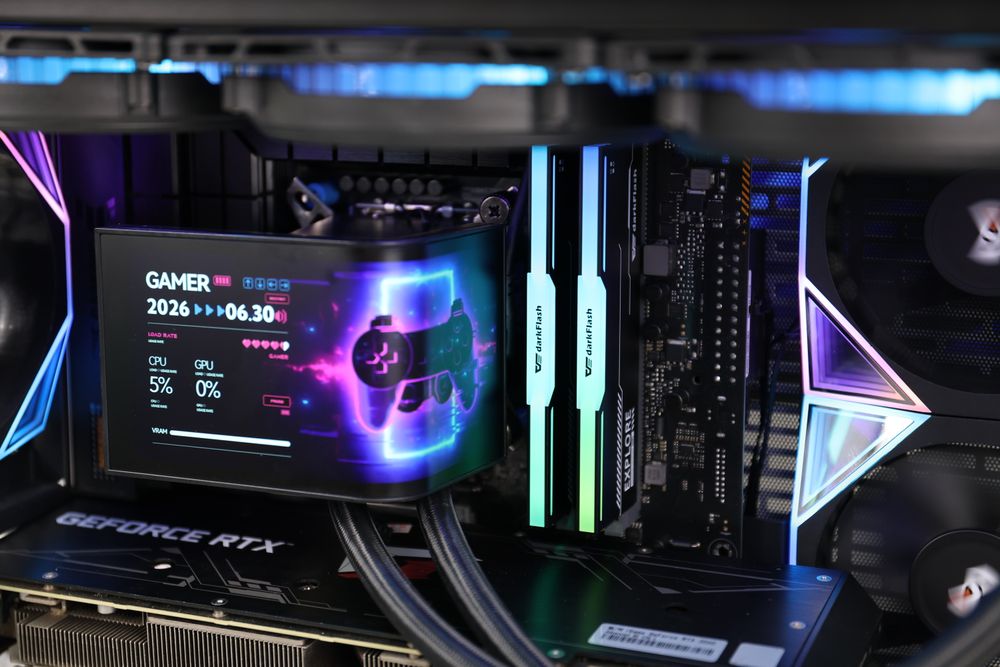
Remove all RAM sticks.
Install one stick in slot A2. On most boards this is the second slot from the CPU, but confirm in your motherboard manual. For most consumer DDR5 boards, one stick goes in A2 and two sticks go in A2 and B2.
Press down firmly on both ends until the latches click.
Try booting. If it works, shut down and add the second stick in B2.
Wait before you decide it has failed. On a new DDR5 build, the first boots can include long memory training (see the FAQ below).
3. Inspect for Extra Motherboard Standoffs or Metal Shorts Inside the Case
If the PC dies instantly even with correct cables, look for something metal touching the back of the motherboard.
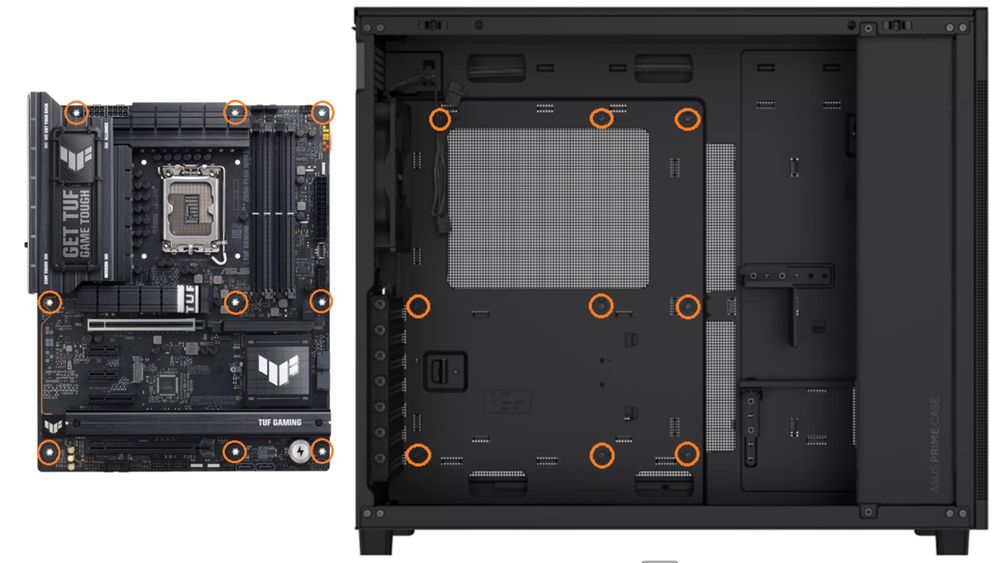
Extra standoffs. If you moved from a larger to a smaller motherboard, an unused standoff left in the tray can touch the board’s underside and cause a short. Every standoff should line up with a mounting hole on your board.
Rear I/O shield tabs. On boards without a built-in shield, check that no metal tab has slipped into a USB or Ethernet port.
Loose cables. Unused fan or ARGB connectors lying against bare metal can potentially short. Tuck them away or tape the ends.
4. Verify Your CPU Cooler Mount, Plastic Peel, and Pump Power
Without proper cooling, a CPU can reach its thermal limit quickly and the system will shut down to protect it.

Remove the protective film. Check that the plastic sticker on the cold plate of your air cooler or AIO block is gone.
Check mounting pressure. If the cooler is loose or uneven, the base may not touch the CPU properly.
Check pump power on AIOs. Make sure the pump cable (AIO_PUMP or CPU_FAN header) and any required SATA power cable are connected so coolant is circulating.
5. Test for a Stuck Case Power Button (The Screwdriver Jump-Start Test)
If your PC runs normally for about four seconds and then powers off every time, suspect the power button. A button that stays pressed can trigger a forced shutdown, and a front-panel cable on the wrong pins can do the same.
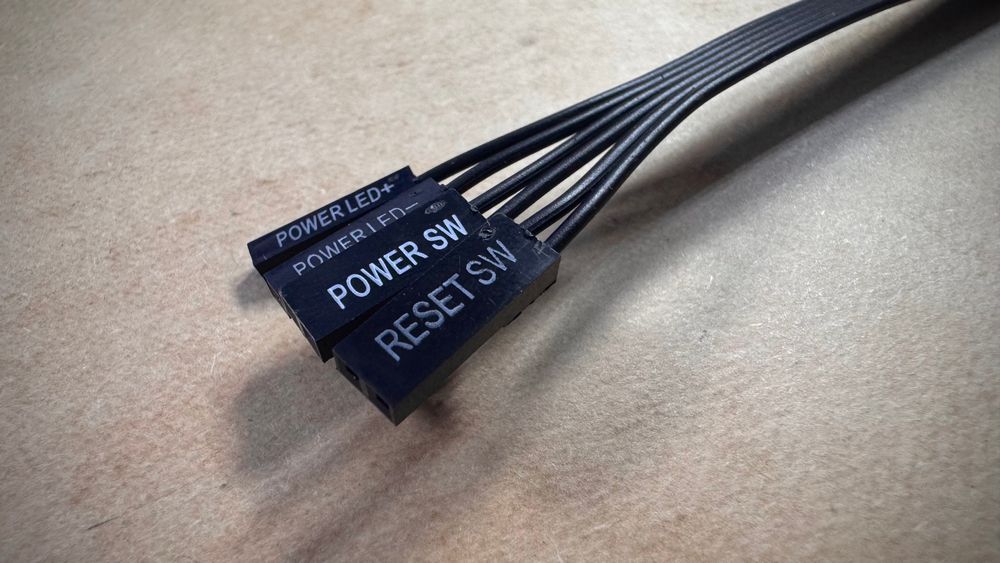
Unplug the POWER SW connector from the front-panel header.
Find the power switch pins in your motherboard manual.
Briefly touch a screwdriver tip across those two pins, then remove it.
If the PC now boots and stays on, the case button or its wiring is the problem.
6. Clear the CMOS Battery to Wipe Corrupted BIOS / XMP Settings
If a working PC started boot-looping after you enabled an XMP/EXPO profile, changed voltages, or lost power, stored BIOS settings may be unbootable.
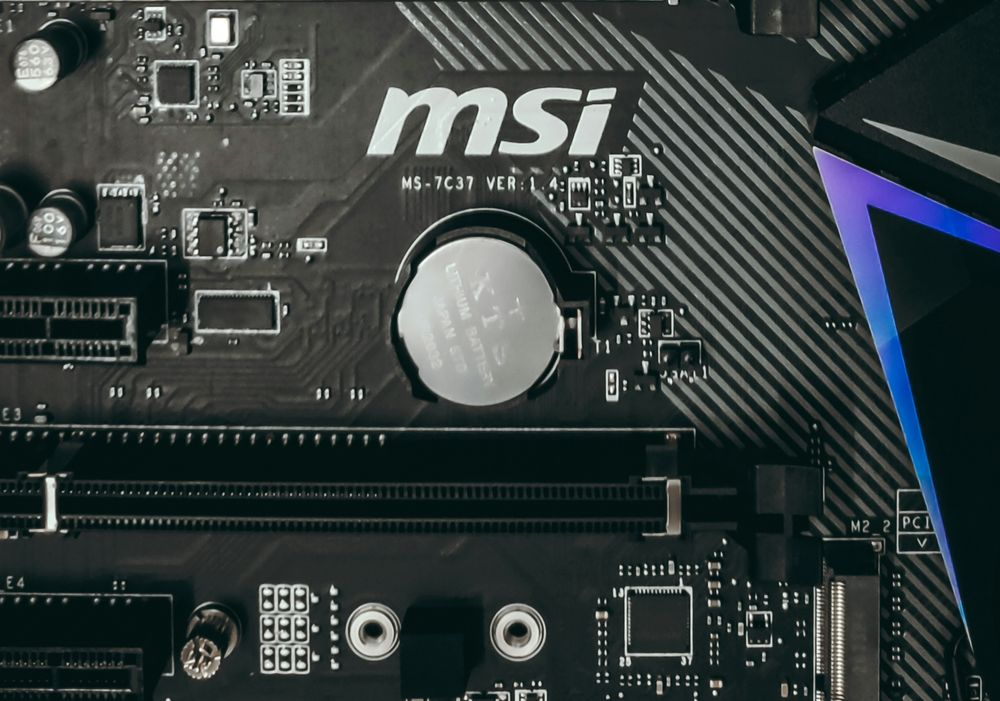
Switch off the PSU and unplug the power cord.
Press the case power button once or twice to drain residual charge.
Find the silver CR2032 coin battery and pop it out.
Wait about 5 minutes, or use the CLR_CMOS jumper if your board has one.
Reinstall the battery, power on, and boot at default settings.
Why Power Supply Protections (SCP & OCP) Are Actually Saving Your PC
A PC that dies instantly isn’t always a sign your power supply is faulty. It can mean the protection circuits are working as designed.
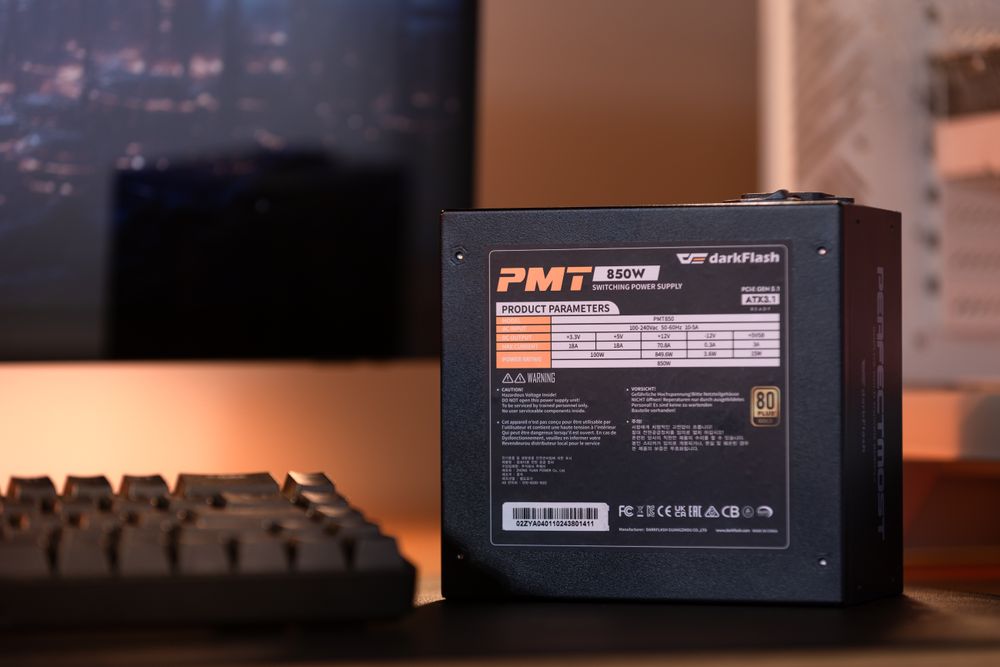
Quality power supplies include safeguards such as short-circuit protection (SCP) and over-current protection (OCP). If the PSU detects a short, such as a pinched wire, a mis-wired cable, or a stray standoff, it shuts off almost immediately instead of pushing current into the fault. That is why a split-second shutdown often points to a physical short rather than a dead component.
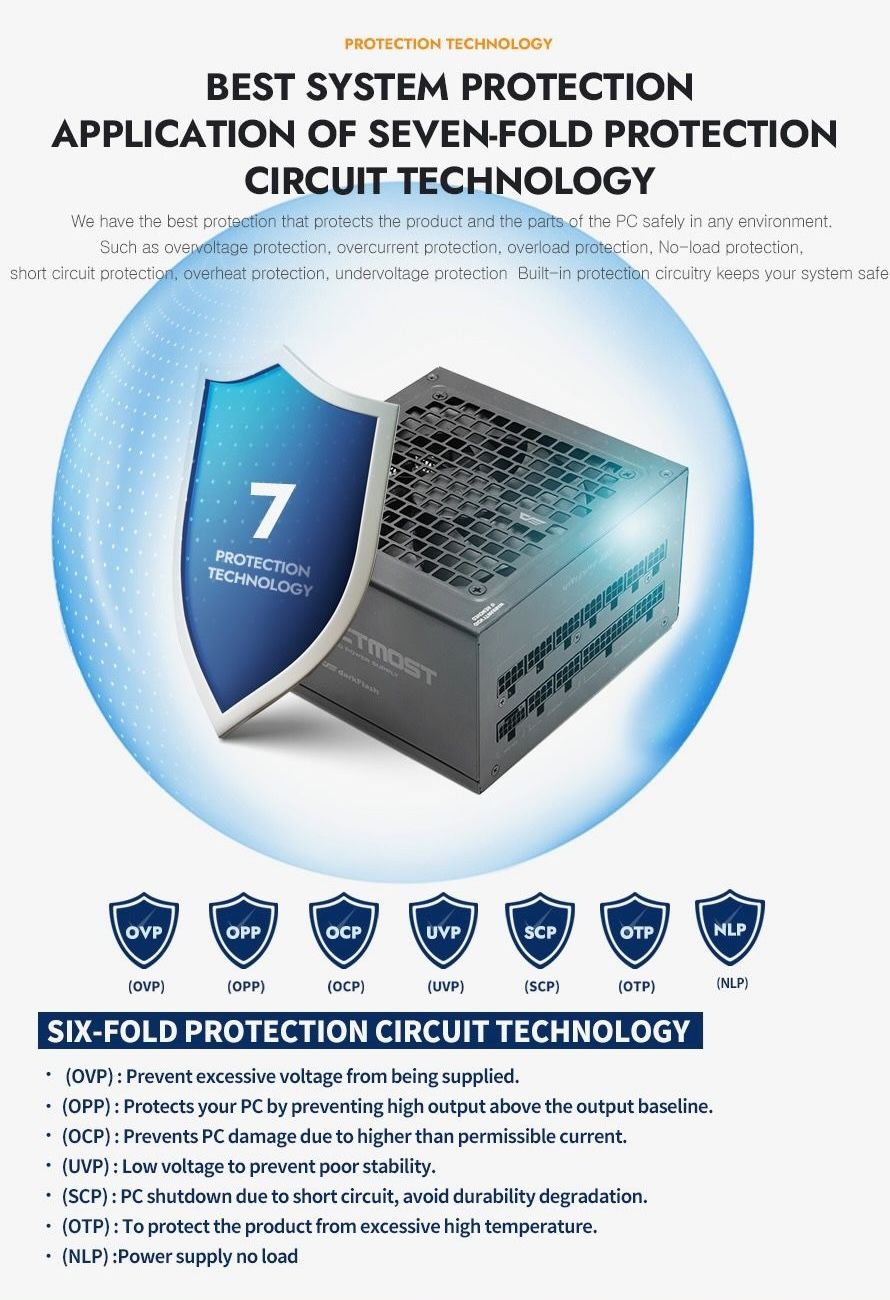
(darkFlash PMT Series Power Supply, with 7 Power Supply Protections)
If you want to rule out the PSU, you can run a no-load check with a jumper or paperclip. Bridge pin 16 and pin 17 on the 24-pin connector, which are the 4th and 5th pins from the left with the clip facing up. Treat the result carefully: the test only confirms the PSU can switch on without a load, and a unit can pass it and still fail under real system load. If you have a known-good spare PSU, swapping it in is the most reliable test. For the full procedure, see our guide on how to test a PSU if your PC won’t boot.
Frequently Asked Questions (FAQ)
Why does my new AM5 / DDR5 PC turn on, turn off, and take minutes to show a picture?
This is often DDR5 memory training, and it is more common on AMD AM5 boards. On some DDR5 systems, training can take up to 15 minutes, so it is worth waiting 10 to 15 minutes on the first boot after a RAM change, BIOS reset, or profile change.
Many users report roughly two to three minutes the first time XMP is enabled, then around 30 seconds afterward. The system may restart once or twice during this process. If your board offers it, enabling Memory Context Restore can speed up later boots.
How can I tell if my power supply or my motherboard is dead?
Run the no-load jumper test described above. If the PSU fan spins, the PSU can at least switch on, but that doesn’t prove it is healthy under load. The reliable method is to try a known-good PSU, or to test the motherboard outside the case.
Can a dead CMOS battery cause a PC to turn on and immediately shut off?
A drained battery usually resets the BIOS clock and settings rather than stopping startup. Clearing CMOS (Step 6) is more useful as a way to remove bad settings than as a battery fix.
What should I do if the PC still shuts off after checking every cable and RAM stick?
Do an out-of-case test. Place the motherboard on its non-conductive box and connect only the CPU, cooler, one RAM stick, the 24-pin cable, and the 8-pin CPU cable. Use a screwdriver on the power switch pins to start it. If it boots, something inside the case, such as an extra standoff or a pinched wire, was causing the problem.
Conclusion: Isolate the Short and Get Back in the Game
A PC that turns on for a second and dies is stressful, but the fix is usually mechanical. Confirm the 8-pin CPU cable and RAM are fully seated, check for stray standoffs, make sure the cooler is mounted correctly, and clear the CMOS. If you’re on DDR5, give the first boot extra time before you assume something has failed.
If you’re planning a new build, case and PSU choice can make assembly easier. darkFlash’s DY460 and FLOATRON F1 ATX are ATX cases that support back-connect motherboards, which keeps the front clean and builds tidier. For power, the PMT Series offers 80 PLUS Gold, ATX 3.1, full-modular units, and the UMT Series is the 80 PLUS Platinum option. Both list OVP, OCP, OPP, SCP, OTP, and UVP protections.