Chłodzenie GPU w RTX 5090 to cud techniki. Niektóre modele zajmują trzy sloty, ważą ponad kilogram i tłoczą ogromne ilości powietrza. Mimo to tysiące konstruktorów obserwuje, jak ich nowe karty dławią się do 85–90°C, a wentylatory pracują z pełną mocą. Karta graficzna nie jest zepsuta. Chłodzenie nie jest zepsute. Problemem jest pudełko, w którym jest zamknięte.
W 2026 roku flagowe karty graficzne, takie jak RTX 5090, są projektowane do pracy przy stałym poborze mocy porównywalnym z grzejnikiem. Niektóre podkręcone karty partnerskie mogą pobierać blisko 1000 watów podczas ekstremalnych obciążeń. Zadaniem układu chłodzenia karty graficznej jest odprowadzanie tego ciepła — ale może ono jedynie przenieść ciepło gdzie indziej . Jeśli tym miejscem jest szczelna obudowa z ograniczonym przepływem powietrza, masz do czynienia z pułapką termiczną, a nie z platformą do gier.
W tym przewodniku wyjaśniono prawa fizyki, przedstawiono rzeczywiste liczby i przedstawiono praktyczną listę kontrolną, która pomoże zdiagnozować i naprawić przegrzewanie — niezależnie od rodzaju problemu.
Fizyka, której nie możesz ignorować
Chłodzenie GPU – niezależnie od tego, czy jest to układ z dwoma, trzema wentylatorami, czy nawet niestandardowy blok chłodzenia cieczą – działa poprzez odprowadzanie ciepła z rdzenia GPU i rozpraszanie go do otaczającego powietrza za pośrednictwem radiatora. Nazywa się to konwekcyjnym przenoszeniem ciepła . Skuteczność chłodzenia zależy wyłącznie od jednego czynnika: różnicy temperatur między radiatorem a powietrzem otoczenia wewnątrz obudowy.
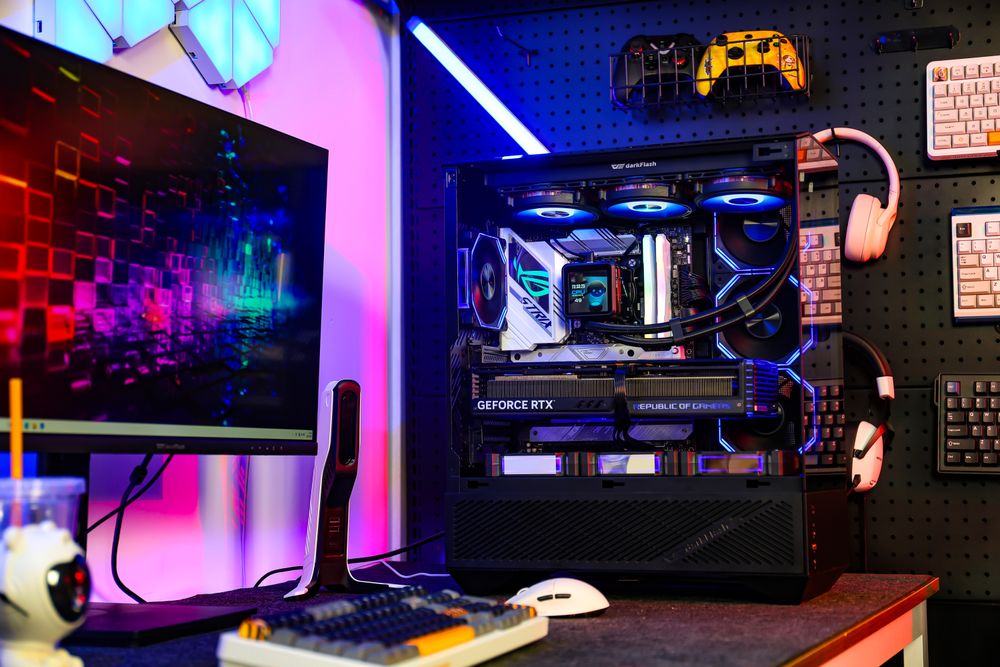
Tutaj większość konstruktorów popełnia błąd. Gdy obudowa ma słaby przepływ powietrza, gorące powietrze wylotowe z wentylatorów GPU krąży wokół niej i jest ponownie zasysane. „Chłodne” powietrze, z którym pracuje Twój cooler GPU, jest już wstępnie podgrzane do temperatury 40–50°C. W efekcie zmniejszasz zapas mocy chłodzenia o połowę przed wygenerowaniem pierwszej klatki.
Zjawisko to nazywa się recyrkulacją cieplną i jest cichym zabójcą komputerów o wysokiej wydajności.
⚡ Kluczowe spostrzeżenia
Chłodzenie karty graficznej nie wytwarza zimna, a przenosi ciepło. Jeśli to ciepło nie ma dokąd uciec, chłodzenie staje się coraz mniej efektywne, niezależnie od liczby wentylatorów i ich prędkości obrotowej.
Czy Twoja sprawa stanowi wąskie gardło? Na jakie znaki należy zwrócić uwagę?
Zanim kupisz nową chłodnicę, koncentrator wentylatora lub system chłodzenia cieczą, przeprowadź diagnostykę. Otwórz oprogramowanie monitorujące (HWiNFO64 lub GPU-Z są doskonałe) i poszukaj następujących wzorców podczas 20-minutowej sesji gry:
❌ Temperatura złącza GPU sięga ponad 90°C, a prędkość wentylatora GPU wynosi już 80–100%. Chłodnica pracuje z maksymalną wydajnością — ale nie ma gdzie odprowadzać ciepła.
❌ Obudowa jest gorąca w dotyku na panelu bocznym i górnej części. Ciepło gromadzi się wewnątrz, ale nie ma możliwości jego odprowadzenia.
❌ Temperatura procesora również gwałtownie rośnie podczas zadań intensywnie wykorzystujących GPU. Oba komponenty konkurują o tę samą, zastałą kieszeń gorącego powietrza.
❌ Używasz obudowy z litym panelem przednim bez siatki wlotowej. Szklane lub stalowe panele przednie znacznie ograniczają dopływ świeżego powietrza.
✅ Temperatura GPU spada o 5–10°C, gdy otwierasz panel boczny w trakcie sesji. To ostateczne potwierdzenie: wąskim gardłem jest przepływ powietrza w obudowie, a nie sprzęt.
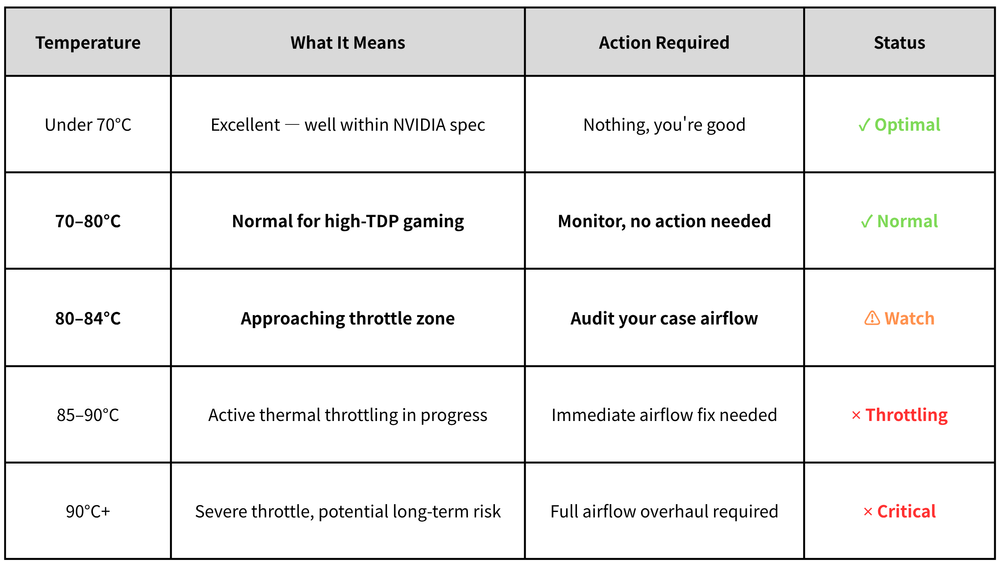
Jakie są „normalne” temperatury karty RTX 5090?
NVIDIA projektuje kartę RTX 5090 tak, aby działała w określonych zakresach temperatur. Oto, co te liczby oznaczają dla Twojego komputera:
Uwaga dotycząca temperatury „złącza” i „rdzenia”
Oprogramowanie monitorujące może wyświetlać zarówno temperaturę rdzenia GPU, jak i temperaturę złącza GPU (lub „gorącego punktu”). Temperatura złącza jest zawsze wyższa i to właśnie ją NVIDIA wykorzystuje do podejmowania decyzji o dławieniu przepustowości. Zawsze śledź temperaturę złącza, a nie tylko temperaturę rdzenia.
Pięć prawdziwych przyczyn przegrzania procesora graficznego spowodowanego obudową
Pełne lub szklane panele przednie/boczne bez ścieżki wlotowej
Przednie panele z hartowanego szkła prezentują się oszałamiająco. Blokują one również 60–80% potencjalnego przepływu powietrza w porównaniu z panelem z pełnej siatki. Gdy chłodzenie karty graficznej z trzema wentylatorami desperacko zasysa powietrze, pobiera recyrkulowane gorące powietrze z wnętrza obudowy zamiast świeżego, chłodnego powietrza z zewnątrz. Ten pojedynczy czynnik jest odpowiedzialny za większość problemów z przegrzewaniem się obudowy. Przednie panele z pełnej siatki rozwiązują ten problem natychmiast – różnica w mierzonych temperaturach karty graficznej może sięgać nawet 12–15°C.
Niewystarczająca liczba wentylatorów lub nieprawidłowe rozmieszczenie wentylatorów
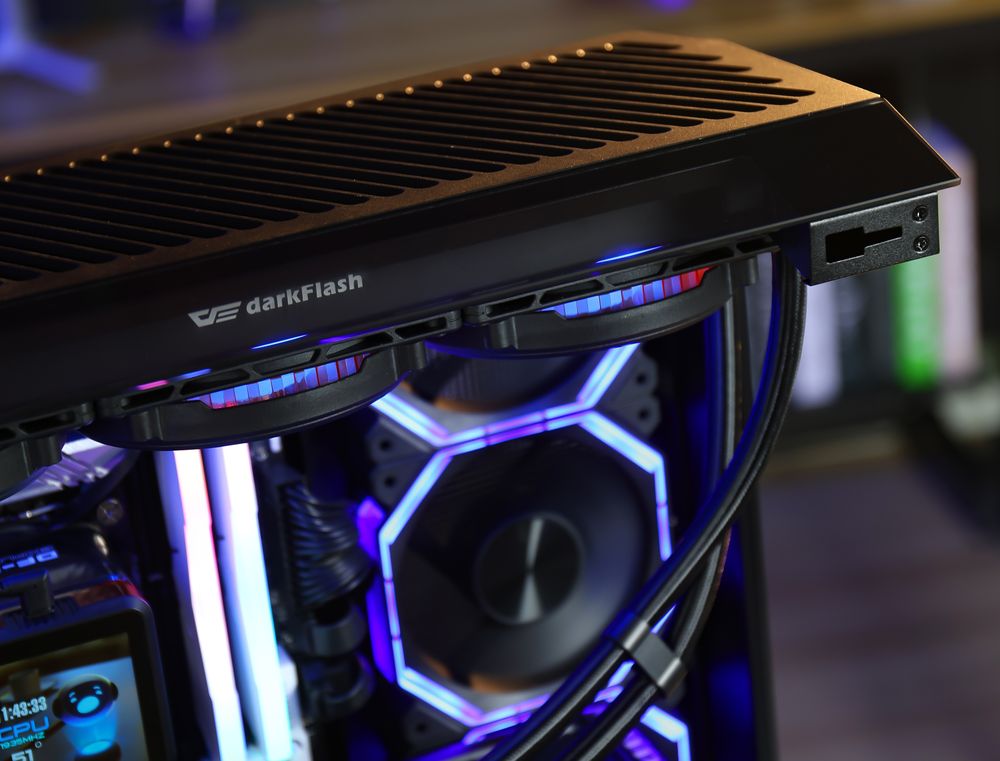
Karta graficzna o mocy 600 W wyrzuca ogromną ilość gorącego powietrza w dół i na zewnątrz. Jeśli obudowa ma tylko jeden tylny wentylator wyciągowy o średnicy 120 mm, gorące powietrze nie ma gdzie uciec – wiruje i podnosi temperaturę otoczenia obudowy. W przypadku konstrukcji opartej na karcie graficznej o wysokim TDP, idealnie nadają się 3 wentylatory wlotowe z przodu (lub z przodu i na dole) oraz co najmniej 1–2 wentylatory wylotowe z tyłu i u góry. Celem jest dodatnie ciśnienie przepływu powietrza o wystarczającej objętości, aby stale odprowadzać ciepło.
Mały odstęp między GPU a spodem
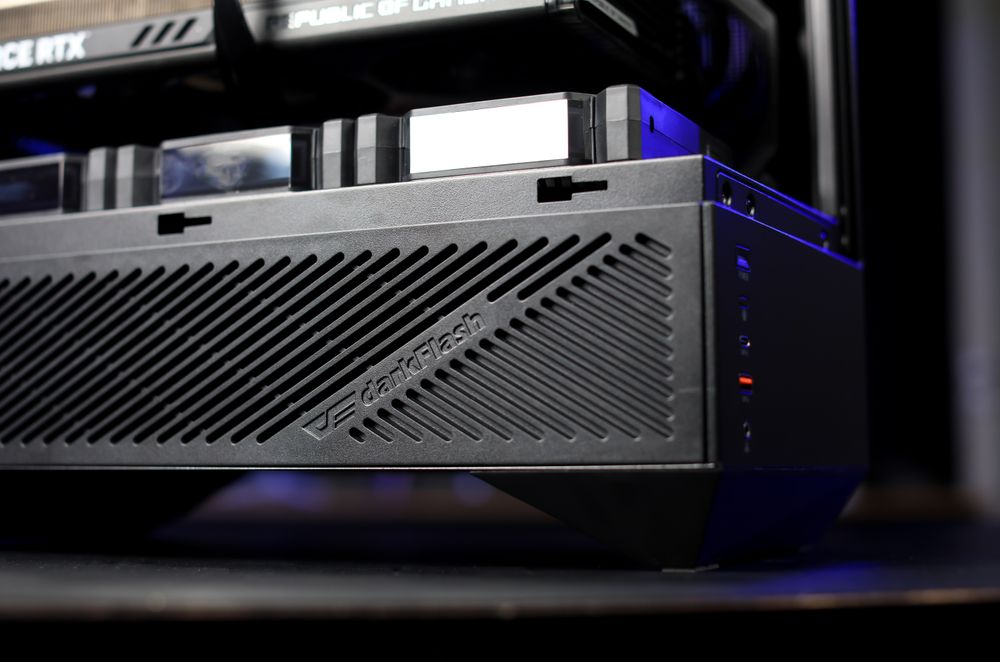
Większość kart partnerskich RTX 5090 wykorzystuje wentylatory montowane u dołu, które zasysają chłodne powietrze spod karty. Jeśli karta graficzna znajduje się zaledwie 10–15 mm nad podstawą obudowy, wentylatory te są bardzo spragnione. Szukaj obudów z podwyższoną częścią nośną dla karty graficznej lub dolnym otworem wentylacyjnym z siatki, który kieruje powietrze z zewnątrz bezpośrednio do wentylatorów karty graficznej. Bez tego nawet najmocniejsze chłodzenie z trzema wentylatorami dławi się własnym, recyrkulowanym gorącym powietrzem.
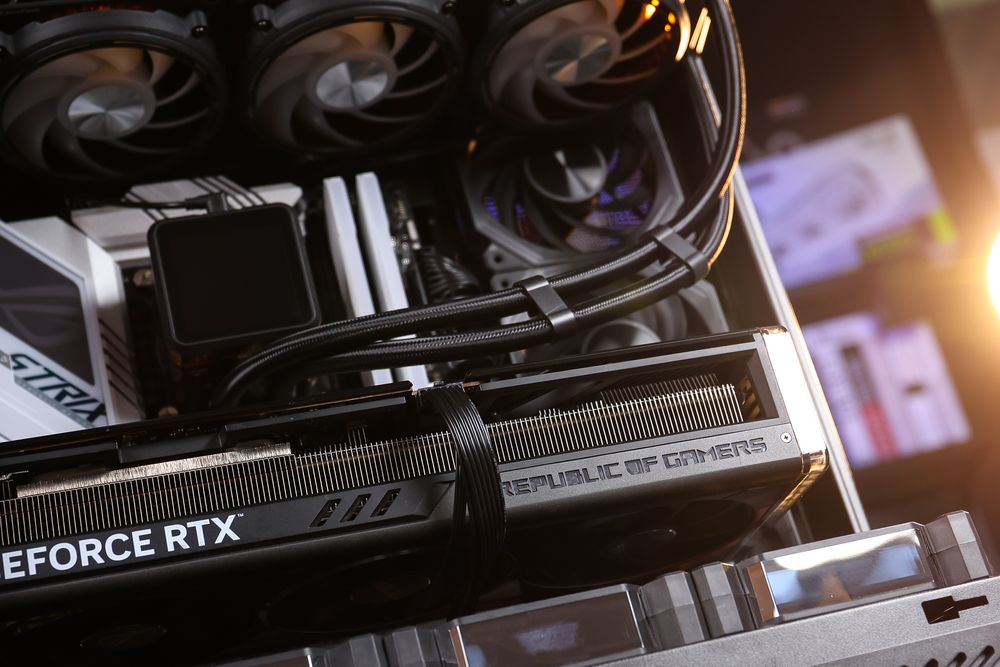
Zalegające kable blokują kanały przepływu powietrza
Splątanie kabli zasilacza, przewodów SATA i niezabezpieczonych złączy bezpośrednio w kanale przepływu powietrza w procesorze graficznym może podnieść temperaturę o 5–8°C. Powietrze jest leniwe — wybiera ścieżkę o najmniejszym oporze. Kable tworzą turbulencje i martwe strefy wewnątrz obudowy. Prawidłowe zarządzanie kablami to nie tylko kwestia estetyki, ale i funkcjonalne ulepszenie termiczne. Ułóż wszystko za tacką płyty głównej, użyj opasek kablowych i utrzymuj czystość w okolicy procesora graficznego.
Praca w gorącym, zamkniętym lub małym pomieszczeniu
Każdy stopień temperatury otoczenia przekłada się bezpośrednio na temperaturę podzespołów. Pomieszczenie o temperaturze 30°C zapewnia o 30°C mniejszy zapas mocy cieplnej procesora graficznego przed osiągnięciem progu dławienia w porównaniu z otoczeniem o temperaturze 20°C. Jeśli komputer jest schowany w szafce biurkowej lub urządzeniu rozrywkowym z ograniczoną cyrkulacją powietrza, cały system przepływu powietrza zaczyna działać w niekorzystnej sytuacji termicznej jeszcze przed uruchomieniem urządzenia.
Rozwiązanie: Praktyczna ścieżka ulepszenia przepływu powietrza
Dobra wiadomość: nie musisz kupować nowego chłodzenia, wymieniać pasty termoprzewodzącej na karcie graficznej ani uciekać się do niestandardowych pętli chłodzenia cieczą. W większości przypadków naprawa przepływu powietrza w obudowie całkowicie rozwiązuje problem. Oto hierarchia interwencji, od najprostszych do najbardziej skutecznych:
Sprawdź i wyczyść filtry przeciwpyłowe. Zatkane filtry wlotowe mogą zmniejszyć przepływ powietrza o 30–50%. Zacznij tutaj — to nic nie kosztuje i zajmie 5 minut.
Sprawdź kierunek i rozmieszczenie wentylatorów. Upewnij się, że wszystkie przednie wentylatory dmuchają do wewnątrz, a tylne/górne wentylatory wydmuchują na zewnątrz. Pojedynczy wentylator pracujący w odwrotnej kolejności może spowodować znaczne zakłócenia w przepływie powietrza.
Dodaj dodatkowe wentylatory, jeśli Twoja obudowa je obsługuje. W szczególności zwiększ wlot powietrza z przodu lub z dołu, kierując go bezpośrednio do strefy GPU.
Uporządkuj okablowanie. Przenieś wszystkie kable zasilacza za tackę płyty głównej. Zachowaj wolną przestrzeń wokół karty graficznej.
Jeśli temperatura utrzymuje się powyżej 85°C, należy wymienić komputer na obudowę z siatki o wysokim przepływie powietrza. To najbardziej znacząca zmiana w sprzęcie w przypadku zestawów z dużą liczbą procesorów graficznych — i często jest tańsza niż nowy cooler.