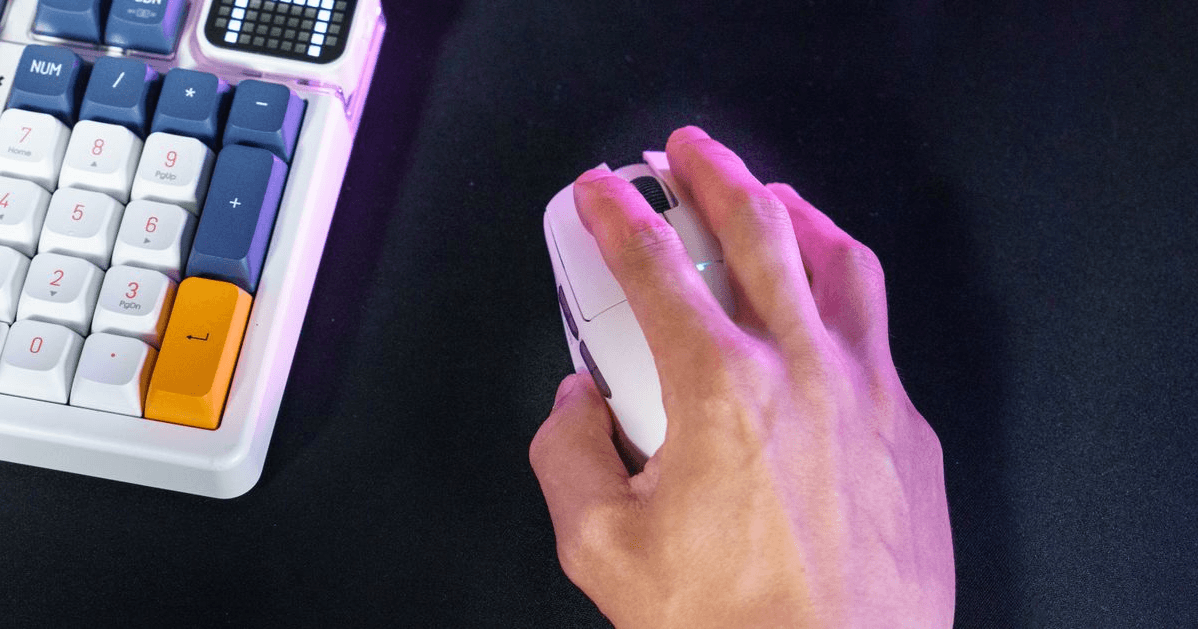
격렬한 게임 도중에 마우스가 렉이 걸리거나, 버벅거리거나, 연결이 끊기는 것만큼 짜증나는 일은 없을 겁니다. 최고급 무선 마우스 세트를 구입하고 완벽한 성능을 기대했는데, 갑자기 커서가 붕 뜨거나 멈춰버리는 상황이 발생하면 정말 답답하죠.
무선 마우스가 제대로 작동하지 않는다면, 문제는 마우스 자체나 배터리가 아닐 수도 있습니다. 오히려, 무선 수신기를 USB 3.0 포트에 잘못 연결한 것이 원인인 경우가 많습니다.
USB 3.0을 사용하면 무선 마우스가 느려지는 이유는 무엇일까요?
언뜻 생각하기에는 이상하게 들릴 수 있습니다. USB 3.0은 USB 2.0보다 훨씬 빠르고 최신 기술인데, 왜 트래킹 문제가 발생하는 걸까요? 그 원인은 고주파 전자기 간섭(EMI) 때문입니다.
2.4GHz 신호 충돌: USB 3.0 포트가 고속으로 데이터를 전송할 때, 특히 2.4GHz에서 2.5GHz 주파수 대역 내에서 전자 노이즈를 방출합니다.
신호 차단: 거의 모든 고급 무선 게이밍 마우스와 키보드는 지연 없는 성능을 구현하기 위해 2.4GHz 무선 수신기를 사용하는데, 이 전자 노이즈가 신호를 효과적으로 차단합니다.
결과적으로 USB 수신기가 마우스에서 전송되는 데이터 패킷을 제대로 수신하지 못하여 커서가 불규칙적으로 움직이거나, 갑작스러운 지연 현상이 발생하거나, 연결이 완전히 끊어질 수 있습니다.
이 기술적 결함은 USB 3.0 표준의 알려진 설계 특성입니다. 인텔 엔지니어들은 2012년 백서에서 이 문제를 자세히 설명했습니다. 이는 컴퓨터 주변기기의 제조 결함이 아니라 신호 간섭의 전형적인 사례입니다.
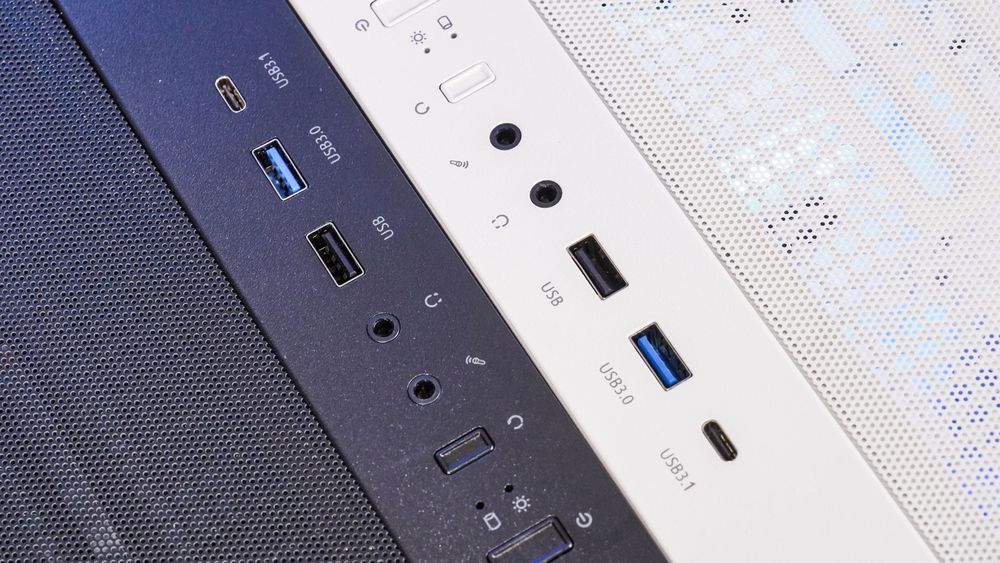
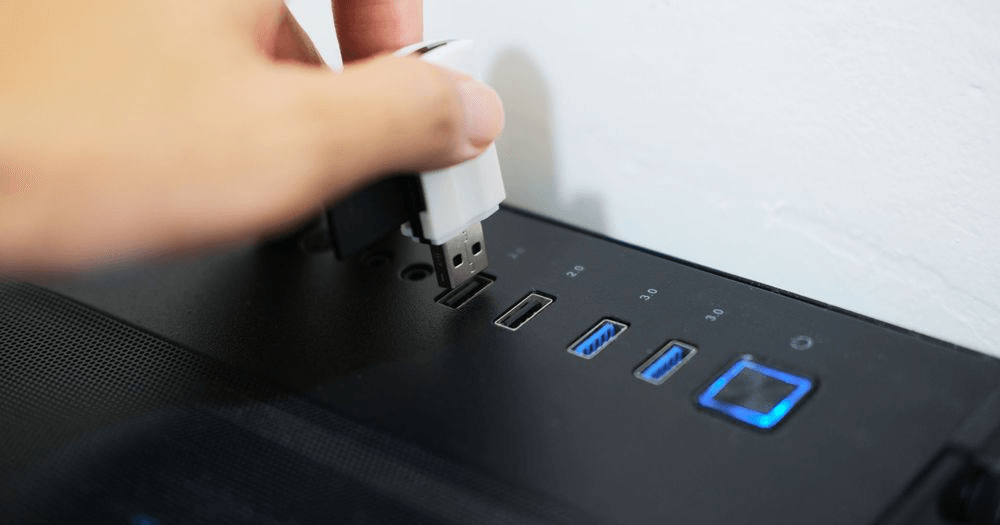
USB 2.0 포트와 USB 3.0 포트를 구분하는 방법
포트의 물리적 모양은 동일하지만, 메인보드 및 PC 케이스 제조업체는 한눈에 구별할 수 있도록 공통적인 색상 코드 시스템을 사용합니다.
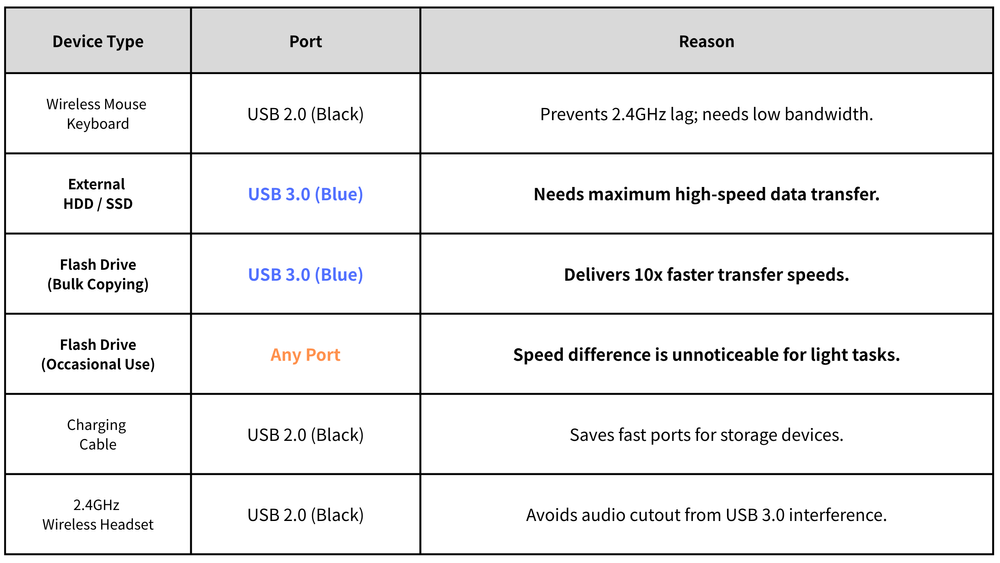
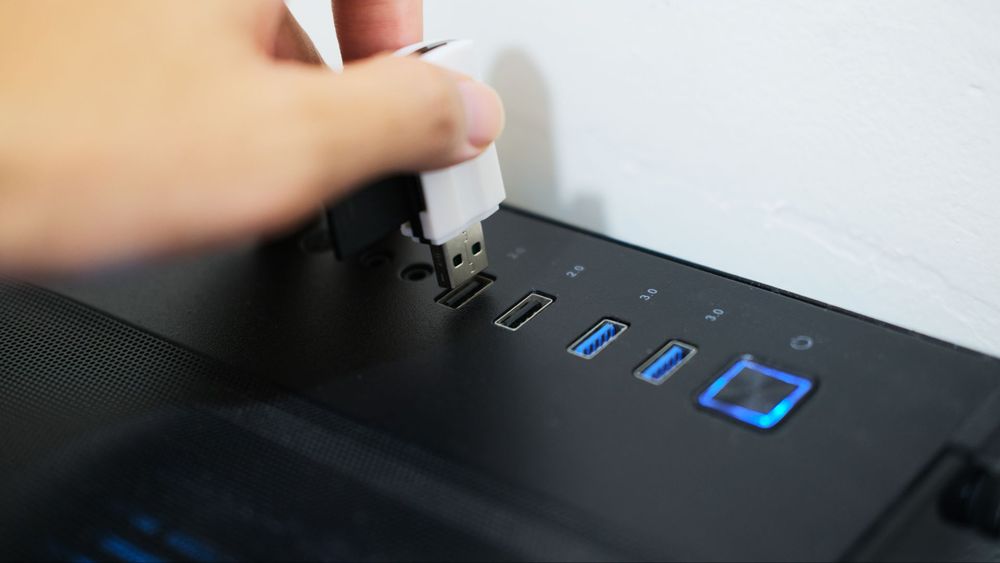
무선 마우스 렉 현상 해결 방법: 30초 만에 완성하는 단계별 가이드
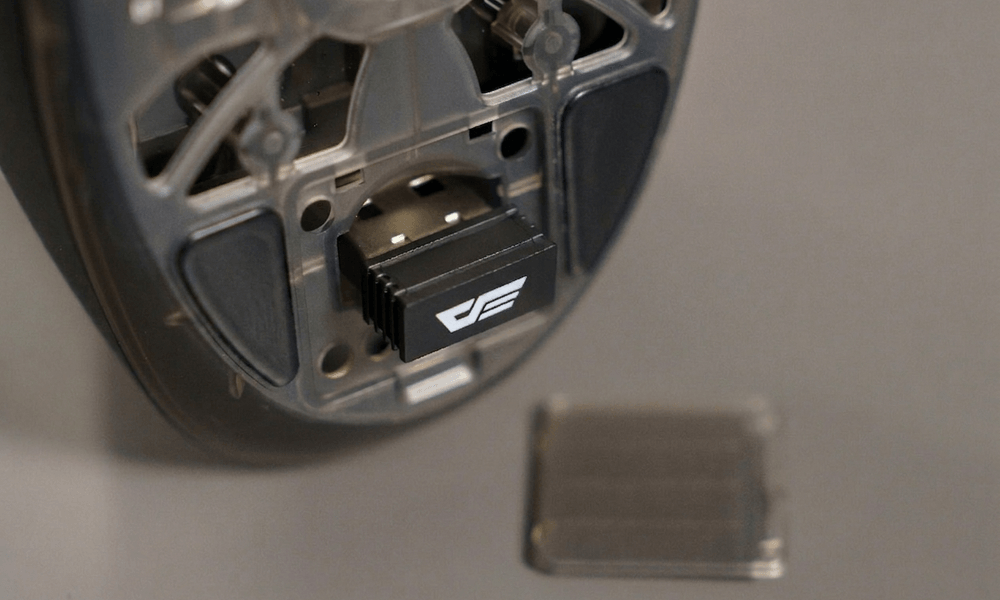
1단계: 무선 USB 동글을 찾으세요
마우스와 연결된 작은 2.4GHz USB 수신기(동글)를 찾으세요.
2단계: 현재 포트 색상을 확인하십시오
마더보드 뒷면이나 PC 케이스 전면 I/O 패널을 확인하십시오. 동글이 현재 파란색, 빨간색 또는 청록색 포트에 연결되어 있다면 간섭의 원인을 파악한 것입니다.
3단계: USB 2.0 포트로 전환하세요
수신기를 분리한 후 표준 검정색 또는 흰색 USB 2.0 포트에 연결하십시오. 드라이버를 다시 설치하거나 PC를 재시작할 필요가 없습니다. Windows에서 장치를 자동으로 즉시 인식합니다.
4단계: 안전한 물리적 거리를 유지하세요
마우스 움직임을 테스트해 보세요. 여전히 미세한 끊김 현상이 발생한다면 수신기가 외장 하드 드라이브와 같은 작동 중인 USB 3.0 장치와 최소 15cm(6인치) 이상 물리적으로 떨어져 있는지 확인하십시오.
게임 환경을 업그레이드하세요: darkFlash 장비로 렉 없는 게임을 즐겨보세요
포트 레이아웃을 개선하는 것은 절반의 성공일 뿐입니다. 최고의 트래킹 성능을 위해서는 깔끔한 하드웨어 설계가 필수적입니다. 끊김 없는 완벽한 초경량 무선 환경을 원하신다면, 전용 장비로 업그레이드하는 것을 고려해 보세요.
궁극의 경쟁 무기
darkFlash DFM80 무선 경량 게이밍 마우스는 2.4GHz 아키텍처에 강력한 간섭 방지 차폐 기능을 탑재하여 특별히 설계되었습니다. 픽셀 단위의 정확한 트래킹과 초저지연 응답 속도를 제공하여 경쟁적인 e스포츠 기준을 충족하고, 사용자의 물리적 입력이 화면에 완벽하게 반영되도록 보장합니다.
스마트 전면 패널 엔지니어링
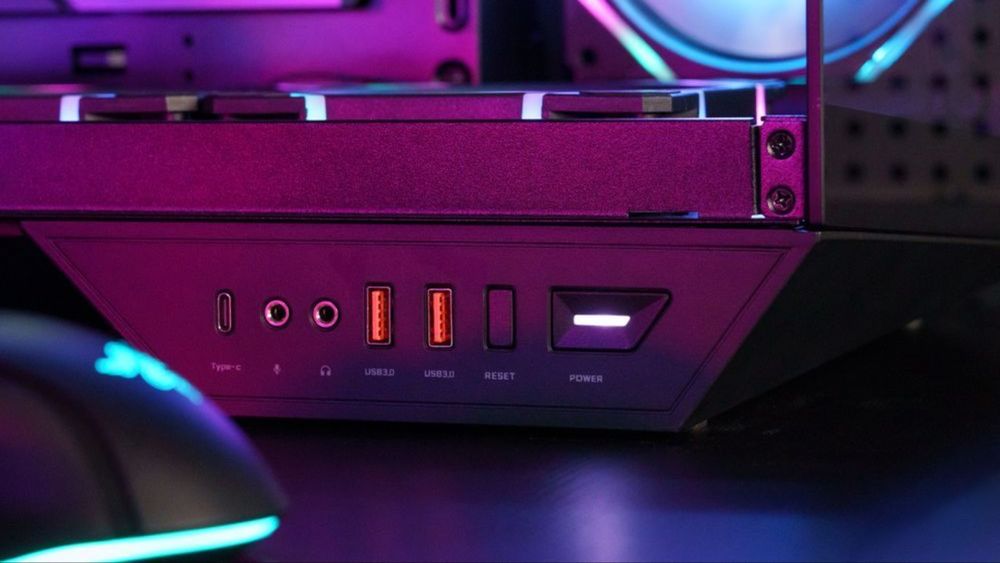
적절한 PC 케이스를 선택하면 케이블 엉킴과 신호 차단을 방지할 수 있습니다. 고급 케이스는 전면 패널 I/O 포트의 간격이 완벽하게 배치되어 있습니다. 이러한 세심한 구조적 설계 덕분에 고속 외장 드라이브를 USB 3.0 포트에 연결하는 동시에 무선 마우스 수신기를 전용 채널에 분리하여 사용할 수 있으므로 구조적인 신호 왜곡을 완벽하게 방지할 수 있습니다.
자주 묻는 질문(FAQ)
USB 2.0 포트로 교체했는데도 마우스가 여전히 버벅거립니다. 어떻게 해야 할까요?
포트를 변경해도 문제가 완전히 해결되지 않으면 USB 연장 케이블을 사용하여 무선 수신기를 마우스 패드 가까이로 옮겨 보세요. 이렇게 하면 동글이 금속 본체와 사용 중인 USB 3.0 케이블에서 멀어지게 됩니다. 또한, 2.4GHz Wi-Fi 채널이 신호 혼잡을 유발할 수 있으므로 Wi-Fi 공유기가 설치 장소 바로 옆에 있지 않은지 확인하세요.
게이밍 노트북도 이와 같은 USB 3.0 간섭 문제를 겪나요?
네, 그리고 종종 더 심각한 문제가 발생하기도 합니다. 노트북 내부 부품과 포트들이 밀집되어 있기 때문에, 작동 중인 USB 3.0 포트에서 발생하는 전자기장이 인접한 슬롯으로 쉽게 새어 들어갈 수 있습니다. 따라서 짧은 USB 연장 허브나 케이블을 사용하여 무선 동글을 노트북 본체에서 몇 센티미터 떨어뜨려 놓으면 매우 효과적입니다.
유선 게이밍 마우스로 바꾸면 이 문제가 완전히 해결될까요?
네. 유선 연결은 전파 주파수를 완전히 우회하므로 2.4GHz 무선 간섭에 전혀 영향을 받지 않습니다.
제 PC에는 파란색 USB 포트 대신 빨간색과 청록색 USB 포트가 있습니다. 사용해도 안전할까요?
아니요. 제조사마다 빨간색, 청록색, 녹색 등 다양한 색상을 사용하여 USB 3.1 또는 USB 3.2 2세대와 같은 최신 버전을 나타내지만, 모두 동일한 2.4GHz 주파수 대역의 데이터 스트리밍 방식을 사용하므로 동일한 간섭이 발생합니다. 무선 주변기기 동글을 사용하려면 기존의 검정색 또는 흰색 USB 2.0 포트를 사용하는 것이 좋습니다.