Why does my mechanical keyboard double-type? If pressing a single key produces two or three identical characters — turning “the” into “tthe” or “gaming” into “ggaming” — your keyboard is experiencing a well-documented hardware issue called key chatter, also referred to as contact bounce.
For anyone looking for a reliable mechanical keyboard double-typing fix, the root cause almost always traces back to one of three things: microscopic contamination on the switch’s metal contact points, oxidation from age or humidity, or a debounce delay setting in your keyboard firmware that’s been configured too aggressively short.
The good news is that replacing the entire keyboard is rarely necessary. In the vast majority of cases, you can stop double-typing in under five minutes by adjusting your firmware’s debounce delay, cleaning the offending switch with 99% isopropyl alcohol, or swapping in a fresh switch if your board has a hot-swappable PCB.
What Is Key Chatter and Why Do Mechanical Switches Bounce?
To understand why a mechanical switch starts registering multiple inputs from a single press, it helps to look at what physically happens inside the switch housing when you push a key down.
Inside every traditional mechanical switch — whether Linear, Tactile, or Clicky — two metal contacts come together to complete an electrical circuit when the stem travels past the actuation point. Because metal is elastic, those contacts don’t simply touch and stay still. They physically vibrate and bounce against each other for a brief period before settling.

(Guide: A second step to fixing key chatter, Keyboardio Community)
According to Dygma, this bounce can involve six or seven rapid contact events from a single keypress, each lasting as little as a microsecond, with the total bounce duration typically under 5 milliseconds. Switch manufacturers generally guarantee bounce time to be less than 5ms — though industry testing shows that aged or environmentally degraded switches can exhibit bounce lasting up to 15ms.
Every keyboard microcontroller uses a built-in filter called a debounce algorithm — typically configured between 5ms and 10ms — to ignore those rapid initial vibrations and register only one clean keystroke. Key chatter occurs when that filter is no longer sufficient to catch the full bounce window. There are four main culprits:
Microscopic dust and debris
Crumbs, skin oils, pet hair, or airborne particles can slip past the switch stem and land directly on the contact surfaces. When you press the key, that contamination causes the electrical connection to flicker on and off for longer than the factory debounce window expects — and chatter slips through.
Contact oxidation and wear
After heavy use, or after months in a humid environment, a thin oxide layer can form on the metal contact points. This creates unstable electrical resistance that mimics multiple rapid presses — a problem well-documented in mechanical keyboard communities and confirmed by Deskthority’s wiki on chatter.
Overly aggressive debounce settings
Many gaming keyboards allow users to lower the debounce delay to 1–2ms in pursuit of faster response. As switches age, their physical bounce duration naturally extends. A switch that originally bounced for 2ms may start bouncing for 6ms or more — and a 2ms debounce window can no longer filter it. AttackShark’s analysis of debounce algorithms notes that aggressively reducing debounce below the physical bounce duration of the switch directly causes chatter and can also induce premature mechanical wear.
Loose hot-swap socket contacts or cold solder joints
On hot-swappable boards, a slightly bent switch pin or a fatigued socket leaf can momentarily lose electrical contact as the key bottoms out, splitting one press into two separate signals. On soldered keyboards, a poorly made solder joint produces the same result — and is one of the more common causes of chatter on DIY builds, as noted by Deskthority.
Symptom Checker: Hardware Chatter vs. Software vs. Wireless Lag
Before pulling off keycaps, take thirty seconds to confirm what kind of double-typing you’re actually dealing with. Different symptoms point to very different fixes:
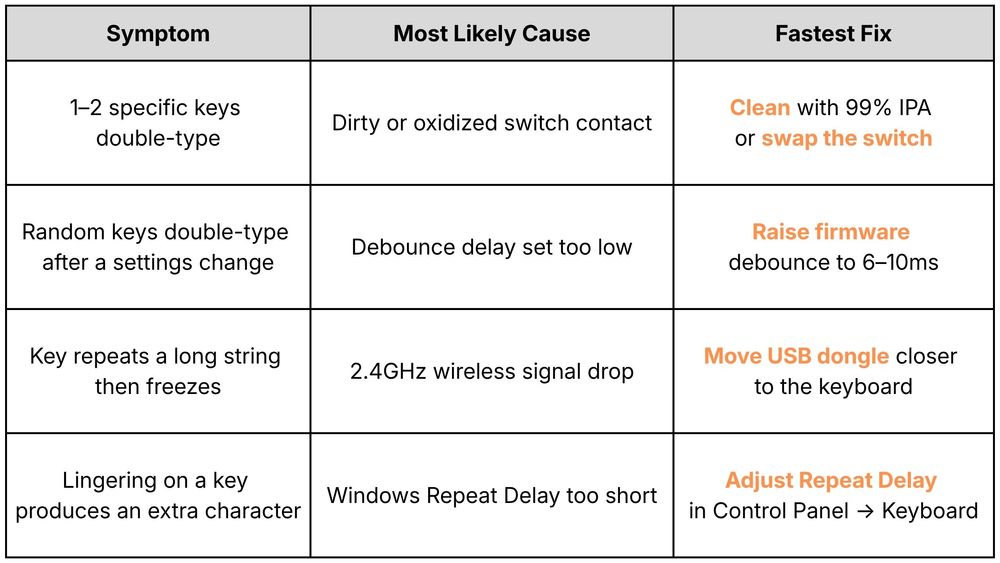
5 Proven Fixes to Stop Mechanical Keyboard Double-Typing
Work through these steps in order, starting with zero-cost software adjustments before moving to physical switch maintenance.
1. Increase Debounce Time in Your Keyboard Software (2-Minute Fix)
If your keyboard ships with companion software or runs on QMK/VIA firmware, the debounce setting is the first place to look. Gamers often reduce this to 1–2ms under the assumption it improves responsiveness, but the real-world benefit is negligible. As Dygma explains, slowing down the scan rate reduces bounce registrations but increases latency; the debounce setting is the balance between these two trade-offs.
Raising debounce from 2ms to 8–10ms adds no perceptible input lag during gameplay, while giving aging switch contacts enough time to fully settle before the firmware commits to a single keystroke registration.
2. Flush the Switch With Compressed Air and 99% Isopropyl Alcohol
If only one or two keys are affected, trapped dust or oxidation on the contact surfaces is the most likely cause. You can clean the internal contacts without fully disassembling the keyboard:
Unplug the keyboard (and turn off the wireless switch if it’s a dual-mode or tri-mode board).
Use a wire keycap puller to lift the keycap straight off the affected switch.
Press the exposed switch stem halfway down and blast short bursts of compressed air into the gap around the stem to dislodge loose debris.
Apply one or two small drops of 99% isopropyl alcohol, not 70% rubbing alcohol, which contains 30% water and is counterproductive for electronics — to the side of the depressed stem using a cotton swab or fine dropper.
Rapidly actuate the switch 40–50 times to work the alcohol across the contact surfaces. The IPA dissolves oxidation and evaporates cleanly.
Wait 15 minutes for full evaporation before reconnecting the keyboard.
Never use standard WD-40 on a mechanical keyboard switch. As keyboardtest.io confirms, standard WD-40 is petroleum-based, leaves an oily film, attracts further dust, and can damage polycarbonate housings and ABS keycaps. If a contact cleaner spray is preferred, use the specific WD-40 Contact Cleaner (the black-label variant) or a dedicated electronics contact cleaner instead.
3. Swap the Faulty Switch (For Hot-Swappable Keyboards)
If cleaning doesn’t resolve the issue, a deformed or worn contact leaf is likely the cause. If your keyboard has a hot-swappable PCB, replacing the switch takes under a minute:
Use a switch puller to squeeze the retention clips at the top and bottom of the switch and pull it straight up.
Inspect the two metal pins on the switch’s underside. A bent or tarnished pin should be carefully straightened with tweezers.
Align the replacement switch’s pins with the socket holes and press straight down until it clicks into place. Spare switches from the box, or a switch swapped from a rarely used key like Scroll Lock, both work.
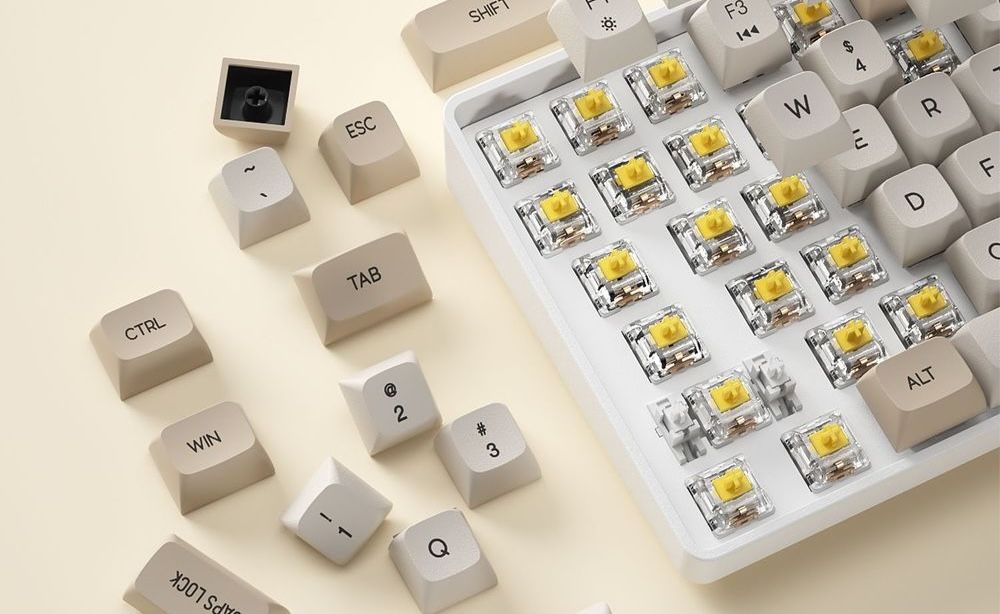
For soldered keyboards, desoldering and resoldering the switch is the correct long-term fix, a software workaround (see Step 4) can mask it in the meantime.
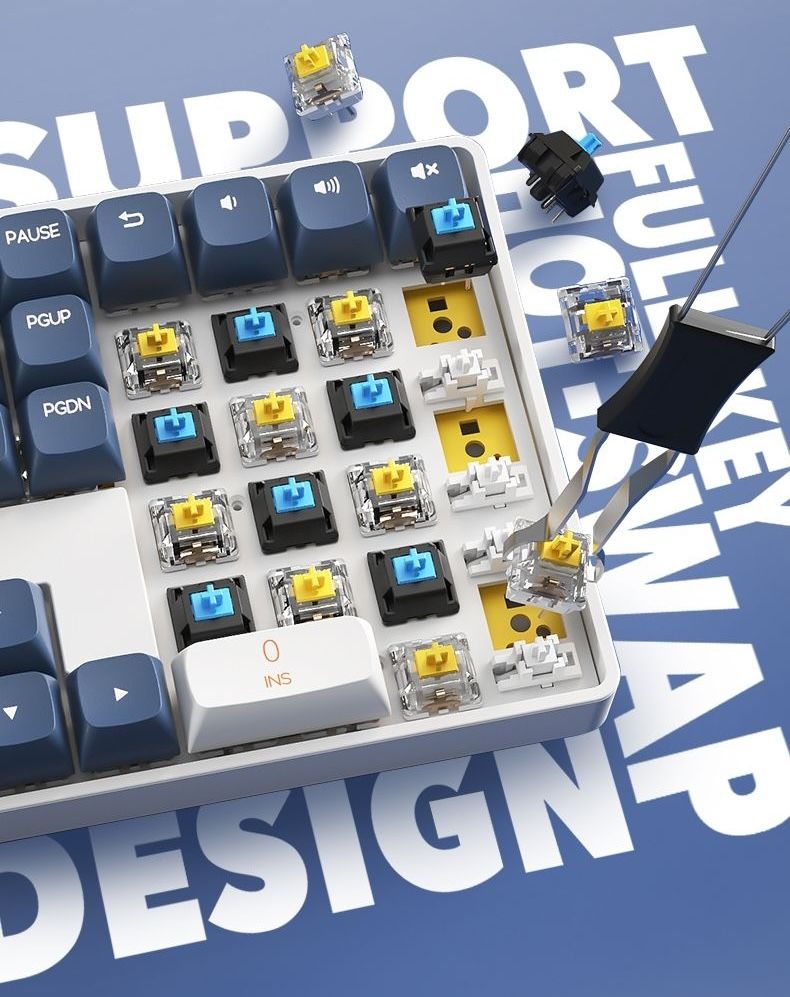
(Hot-Swappable Keyboards, darkFlash GD108 Mechanical Keyboard)
4. Adjust Windows Keyboard Repeat Delay or Use a Software Chatter Filter
When the chattering keyboard is soldered and a soldering iron isn’t immediately available, two software options can mask the problem at the operating system level:
Check Windows Repeat Delay
Press Win + R, typecontrol keyboard, and hit Enter. If the Repeat Delay slider is set all the way to Short, move it one or two notches toward Long and click Apply.Use a software chatter blocker
Free open-source tools like Keyboard Chatter Blocker allow you to set a custom per-key time threshold — for example, blocking any duplicate A keypress that occurs within 45ms, effectively filtering hardware chatter at the OS level. This is a workaround, not a fix, but it’s a practical solution when physical repairs aren’t immediately possible.
5. Eliminate 2.4GHz Wireless Interference
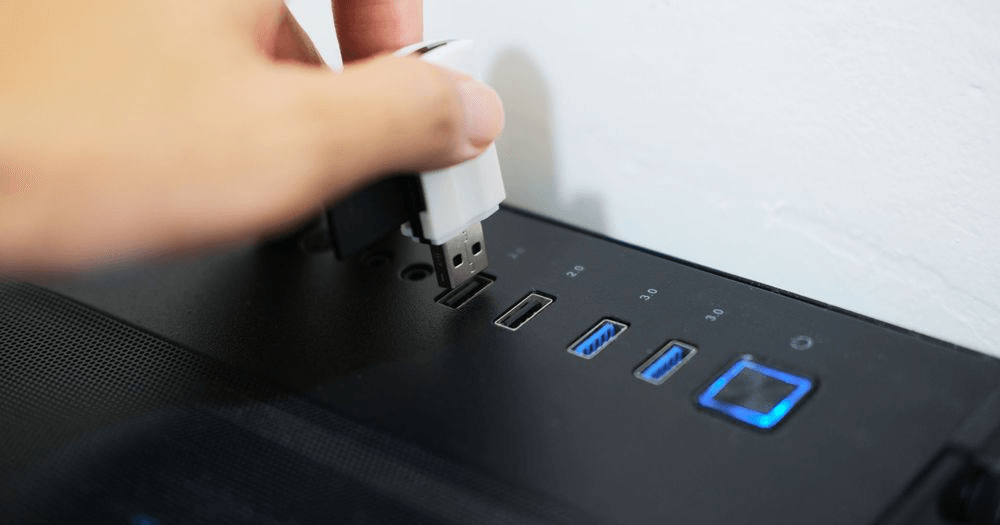
If double-typing or stuck-repeating keys only occur in 2.4GHz wireless mode, and the problem disappears when using a USB-C cable. The wireless receiver is likely dropping key-release packets rather than the switch itself chattering. Move the USB dongle away from USB 3.0 flash drives, Wi-Fi antennas, or other 2.4GHz sources, and plug it into a port within 30cm of the keyboard, ideally directly into a rear motherboard I/O port.
Frequently Asked Questions
Can I use WD-40 to fix a double-typing mechanical keyboard switch?
No. Standard WD-40 is a petroleum-based solvent and lubricant that leaves an oily residue inside the switch, degrades tactile feel over time, attracts dust into a gummy buildup, and can damage polycarbonate housings and ABS keycaps. Always use 99% isopropyl alcohol for contact cleaning, or a dedicated electronics-grade contact cleaner spray.
Why do WASD keys and the Spacebar start double-typing first?
These keys absorb the highest volume of high-force and often off-center keypresses during gaming. The Spacebar’s wide, open housing also allows significantly more dust, crumbs, and debris to enter the switch compared to standard keys, making contamination more likely and faster.
Do Hall Effect (magnetic) or optical switches ever get key chatter?
Genuine contact bounce doesn’t occur in Hall Effect or optical switches because neither technology uses physical metal contacts closing against each other. Hall Effect sensors read magnetic field changes; optical switches detect whether a light beam is interrupted.
However, if a Hall Effect keyboard appears to double-type, the Rapid Trigger reset point is likely set extremely fine (such as 0.1mm) and is triggering on minor finger movement, adjustable in software. If an optical switch double-types, dust blocking the light path or a firmware issue is the most likely cause, as keyboardtest.io notes.
How long should a mechanical keyboard switch last before double-typing starts?
Most quality mechanical switches are rated for 50 to 100 million keystrokes, Cherry MX switches, for example, are officially rated for 50 million actuations, with some models such as the MX Black rated for 100 million.
When chatter develops within the first year or two of ownership, it’s almost always caused by dust entering the switch housing rather than the contact leaf wearing out prematurely.
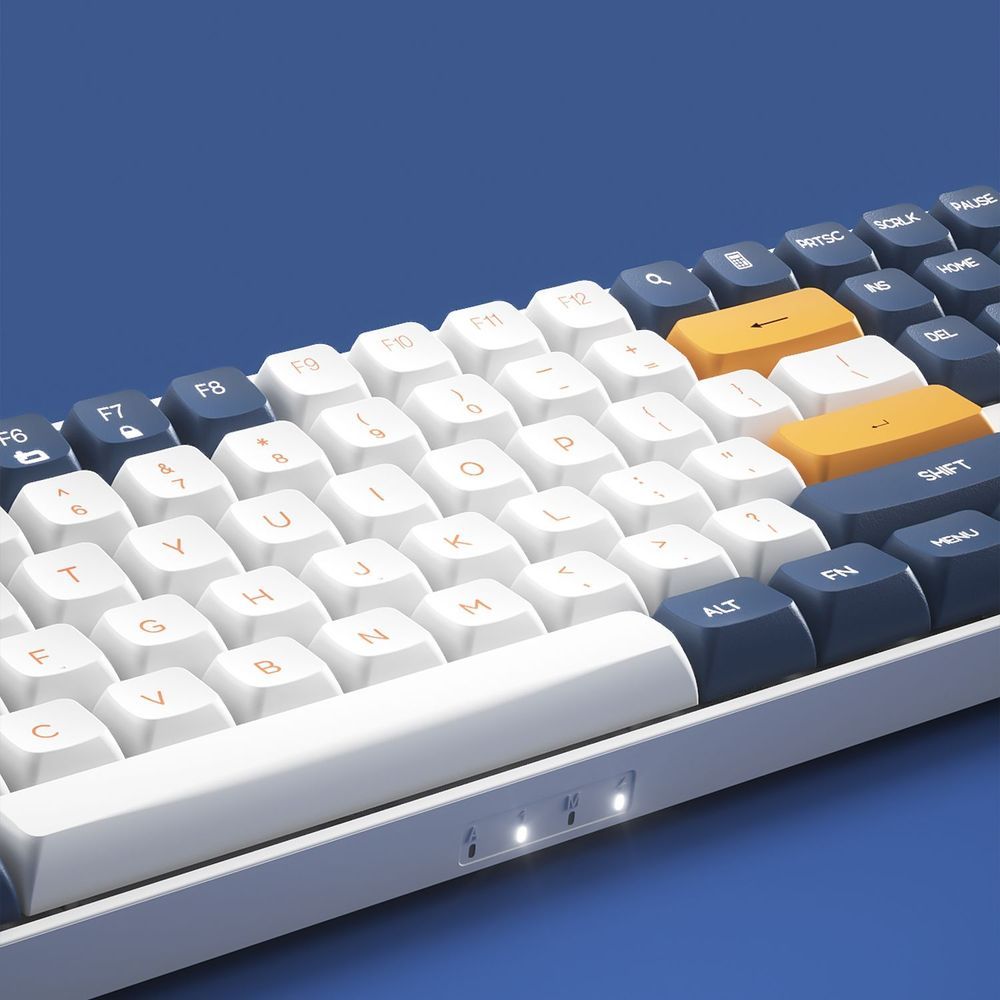
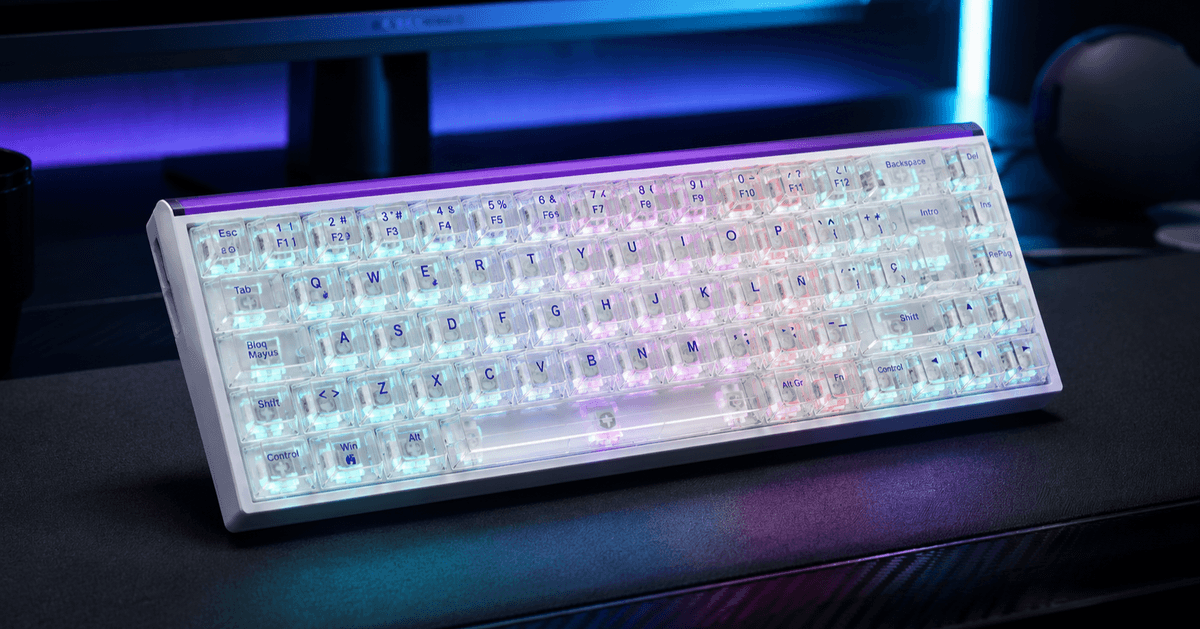
(darkFlash GD108 Mechanical Keyboard)
Conclusion: Keep Your Keystrokes Clean and Reliable
A double-typing key is frustrating whether it ruins a movement in a competitive match or forces you to backspace through a paragraph mid-email. Fortunately, raising your firmware debounce delay to 8–10ms or cleaning a dusty switch contact with 99% isopropyl alcohol resolves the problem for most users in a matter of minutes.
If you’re planning a peripheral upgrade and want to minimize the risk of key chatter going forward, two design features are worth prioritizing: hot-swappable sockets and contactless switch technology.
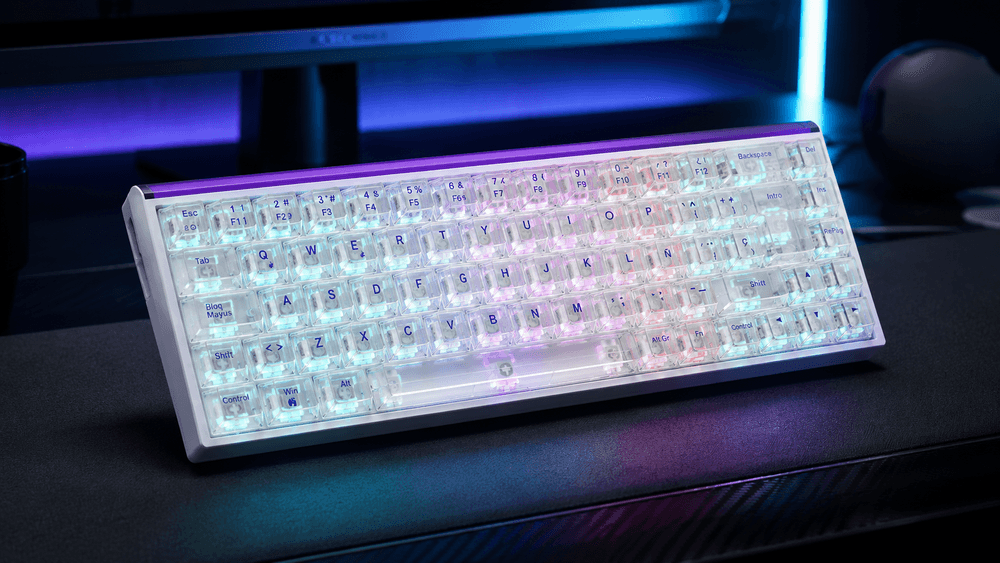
(darkFlash DH500G Magnetic Switch Keyboard)
Hot-swappable mechanical keyboards like the darkFlash GD108 let you pull and replace any worn or contaminated switch in seconds. And if you want to eliminate contact bounce at a hardware level entirely, the darkFlash DH500G Hall Effect Keyboard uses magnetic sensors with adjustable 0.1–3.8mm actuation and an 8,000Hz polling rate, delivering chatter-free precision that doesn’t depend on physical metal contacts at all.